Group work order operations (GWOO) application
The Group Work Order Operations (GWOO) application is used to group multiple Work order operations (WOO) together.
The Work order operations (WOO) can be grouped in to either groups which are run Concurrently or Sequentially.
Important
Groups are not registered, nor forwarded or progressed in any way with actions performed in the Group work order operations (GWOO) application, but rather actions performed in the Aligned productions (RUNGROUPWORK) application for concurrent groups, and Work order operations (WOO) application for sequential groups.
Created groups are used as a single instance and can not be reused.
Concurrent grouping enables you to start, pause, stop or complete all the Work order operations (WOO) in the group simultaneously, via the Aligned productions (RUNGROUPWORK) application.
Sequential allows for one Work order operation (WOO) to be performed at a time, but in the same Work order operation (WOO) application context and instance.
Important
Grouping of Work order operations (WOO), only applies for Work order operations (WOO) without any parts.
In other words, the Group work order operations (GWOO) is only designed for Work order operations (WOO) with only Operations (OPR).
Examples of Work order operations (WOO) which can be grouped:
Assembly operations in discrete manufacturing without any parts.
Measuring and testing operations without any parts.
Note
Running Work order operations (WOO) concurrently from the Group work order operations (GWOO) application will block the same actions in the Work order operations (WOO) application.
Navigate to the Group work order operations (GWOO) application
Option 1: RamBase menu → Production → Production → Group jobs on resource
Option 2: Click the Program field and type "GWOO" and press ENTER.
Click here to read more about the user interface.
Overview
For documentation purposes the application is split into two main areas; left side and right side.
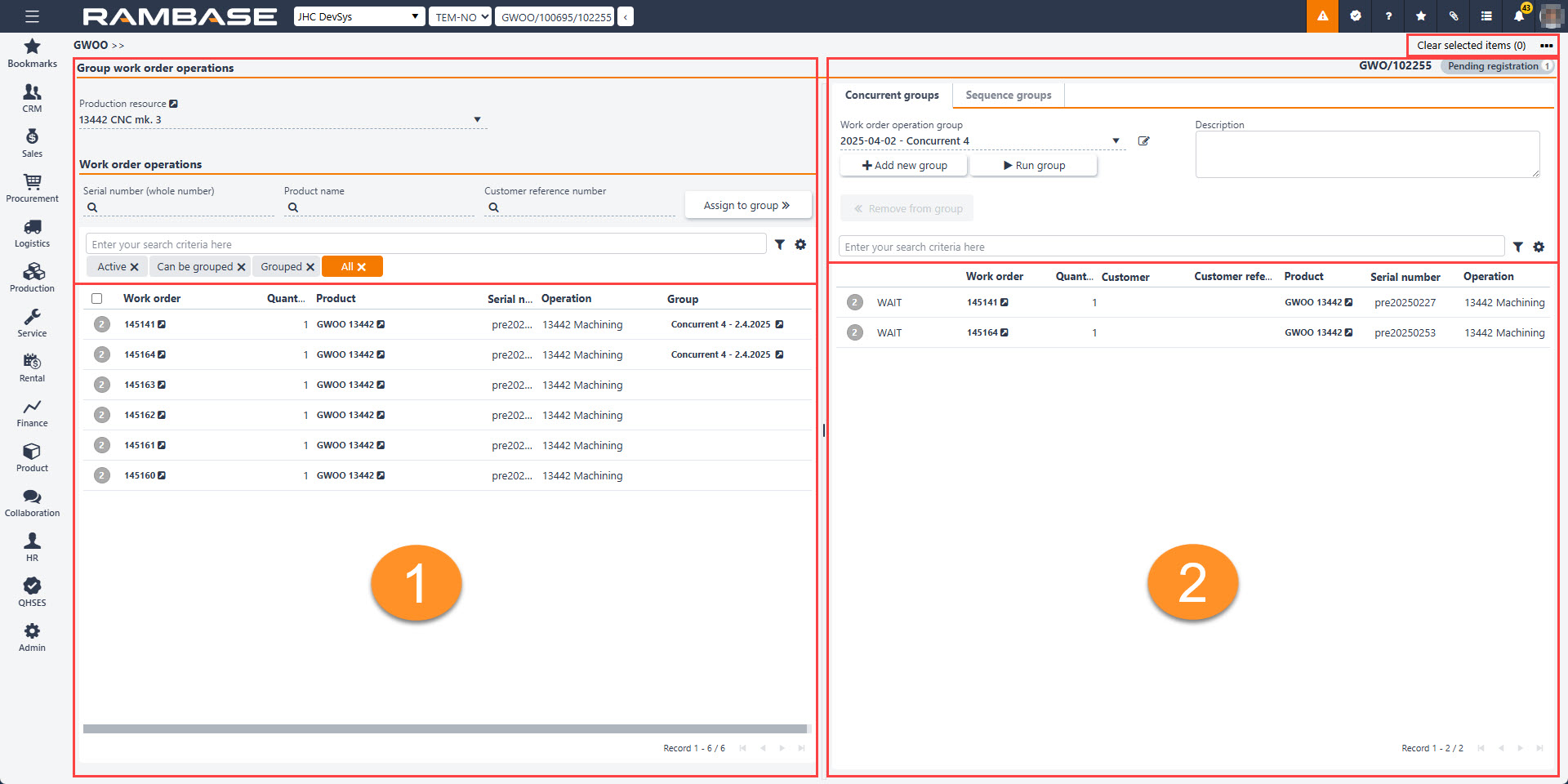
Left side - Group work order operations area
The Group work order operations area requires the selection of a Production resource (RESCONFIG) which allows grouping of Work order operations (WOO). The Work order operations (WOO) of that Production resource (RESCONFIG) will then potentially populate the list. The user then needs to create either Concurrent or Sequence groups on the right side, before potentially assigning Work order operations (WOO).
Header
The header allows for selection of a Production resource (RESCONFIG) and filtering of the potential Work order operations (WOO), as well as assigning, via the Assign to group button.
Search field, filter builder and column settings
The header contains multiple options to filter the list:
Active
All
Can be grouped
My tasks
Not grouped
Production
Ready
Wait
Production resource drop-down list - To select a Production resource (RESCONFIG) which has Work order operations (WOO) to assign, click the Production resource drop-down list.

View icon
Serial number (whole number) field - To search for Work order operations (WOO), for a specific Product unit (LCM), with a certain Serial number (SNO), provide it in the field and press ENTER. Note that the whole serial number must be provided.
Product name field - To search for Work order operations (WOO) for Products (ART) with certain names, provide it in the field and press ENTER. Note that partial input is allowed.
Customer reference number - To search for Work order operations (WOO) with a certain customer reference number, provide it in the field and press ENTER. Note that partial input is allowed.
Assign to group button - To assign a selected Work order operation (WOO) in the list to either a Concurrent or Sequence group, click the Assign to group button.
Note
The destination group must be in Status 1 - Pending registration.
Assign to group button
List
The list displays Work order operations (WOO), for the selected Production resource (RESCONFIG), for potential grouping.
Column | Icon | Description |
|---|---|---|
| Displays the status of the Work order operation (WOO). Relevant and potential statuses for Work order operations (WOO)
| |
Work order |
| Displays the Production work order (PWO) identifier. To open the Production work order (PWOD) application in the context of the displayed identifier, click the View icon. |
Quantity | Displays the quantity for the Work order operation (WOO). | |
Customer | If the Production work order (PWO) containing the Work order operations (WOO) is produced based on a Sales order (COA), the customer's name will be displayed. | |
Customer reference number | If the Production work order (PWO) containing the Work order operations (WOO) is produced based on a Sales order (COA), the customer's reference number will be displayed. | |
Product |
| Displays the name of the Product (ART) being produced by the Work order operation (WOO). To open the Product (ART) application in the context of the current product, click the View icon. |
Serial number | If the Product unit (LCM) being produced by the Work order operation (WOO) has a serial number, it will be displayed here. | |
Operation | Displays the name of the Operation (OPR) applying to the Production resource (RESCONFIG) performing the Work order operation (WOO). | |
Group |
| If the Work order operation (WOO) is assigned to a Group work order operation (GWOO) group, the name of the group will be displayed. To display the Group work order operations (GWOO) group, in the right side Tabs area, click the View icon. |

Right side - Tabs
The right side contains the tabs; Concurrent groups and Sequence groups.
Important
Groups are not registered, nor forwarded or progressed in any way with actions performed in the Group work order operations (GWOO) application, but rather actions performed in the Aligned productions (RUNGROUPWORK) application for concurrent groups, and Work order operations (WOO) application for sequential groups.
Concurrent groups
Concurrent grouping enables you to start, pause, stop or complete all the Work order operations (WOO) in the group simultaneously, via the Aligned productions (RUNGROUPWORK) application.
Important
Work order operations (WOO) in Status 2 - In queue or Status 3 - Ready for start, can be added to a Group work order operations (GWOO) group in Status 1 - Pending registration.
Workflow:
Allow Work order operations (WOO) to be grouped in the Production resources (RESCONFIG) application.
Create a concurrent group in the Group work order operations (GWOO) application
Assign Work order operations (WOO) to a concurrent group in the Group work order operations (GWOO) application
Run and complete a concurrently Group work order operation (GWOO) group in the Aligned productions (RUNGROUPWORK) application.
Detailed procedure on "How to group and run Work order operations (WOO) concurrently in the Group work order operations (GWOO) application", can be found here.
Header
The header includes the options of selecting, creating and running concurrent groups. There is also the option of removing Work order operations (WOO) from a group.
Work order operation group drop-down menu - To select a previously created concurrent group, click the Work order operation group drop-down menu. To change the name, click the Rename group icon.

Rename group icon
Description field - To add a description to the group, click, type and confirm by pressing ENTER.
Add new group button - To add a new group in Status 1 - Pending registration, click the Add new group button.

Add new group button
Run group button - To run a group via the Aligned Productions (RUNGROUPWORK) application, click the Run group button.

Run group button
Remove from group button - To remove selected Work order operations (WOO), click the Remove from group button.

Remove group button
Search field, filter builder and column settings
The header contains multiple options to filter the list:
List
The list in the Concurrent groups tab details the Work order operations (WOO) added to the concurrent group.
Column | Icons | Description |
|---|---|---|
| Displays the status of the assigned Work order operations (WOO). To select a single or multiple Work order operations (WOO), especially for removal, click the Status icon(s). The status description is also on display, next to the Status icon. | |
Work order |
| Displays the Production work order (PWO) identifier of the Work order operation (WOO). To open the Production work order (PWO), click the View icon. |
Quantity | Displays the quantity of the Work order operation (WOO). | |
Customer | If the Production work order (PWO) is a production need from a Sales order (COA), the name/company name of the Customer (CUS) is displayed here. | |
Customer reference number | If the Production work order (PWO) is a production need from a Sales order (COA), the customer reference number of the Customer (CUS) is displayed here. | |
Product |
| Displays the name of the Product (ART) being produced by the Work order operation (WOO). To open the Product (ART) application in the context of the current product, click the View icon. |
Serial number | If the Product unit (LCM) being produced by the Work order operation (WOO) has a serial number, it will be displayed here. | |
Operation | Displays the name of the Operation (OPR) applying to the Production resource (RESCONFIG) performing the Work order operation (WOO). |
Sequence groups
The Sequence groups tab allows grouping of Work order operations (WOO) and then to run them one after another, sequentially.
The production planner may rename the Group work order operation (GWOO), add a Description, set a Priority for the whole sequence group and change the order of the Work order operations (WOO) inside the sequence by using drag and drop in the Sequence groups tab.
Note
The priority numbers that have already been taken will not show up in the Priority drop-down menu.
The group of Work order operations (WOO) can be viewed and run via the Operators list of production work order operations (RWOO) application by clicking the View group button. The order of the work order operations within the sequence can be seen in the Work order operations (WOO) application by selecting the Show sequence checkbox.
Important
Work order operations (WOO) in Status 2 - In queue or Status 3 - Ready for start, can be added to a Group work order operations (GWOO) group in Status 1 - Pending registration.
Workflow:
Allow Work order operations (WOO) to be grouped for Production resources (RESCONFIG)
Create a sequential group in the Group work order operations (GWOO) application
Assign Work order operations (WOO) to a sequential group in the Group work order operations (GWOO) application
Run and complete a sequence group in the Work order operation (WOO) application.
Detailed procedure on "How to group and run Work order operations (WOO) sequentially in the Group work order operations (GWOO) application", can be found here.
Header
The header includes the options of selecting, creating and viewing sequential groups. There is also the option of removing Work order operations (WOO) from a group.
Work order operation group drop-down menu - To select a previously created sequence group, click the Work order operation group drop-down menu. To change the name, click the Rename group icon.
Rename group icon
Priority drop-down menu - Set a priority for the Work order operations (WOO) in the sequential group by clicking the Priority drop-down menu. Only available priority indexes are displayed.
Important
This is only relevant if the Company setting (CSV), Sort work order operations by group (GWOO) priority is enabled.
Description field - To add a description to the group, click, type and confirm by pressing ENTER.
Add new group button - To add a new group in Status 1 - Pending registration, click the Add new group button.
Add new group button
View group button - To view a group via the Operators list of production work order operations (RWOO) application, click the View group button.

View group button
Remove from group button - To remove selected Work order operations (WOO), click the Remove from group button.
Remove group button
Search field, filter builder and column settings
The header contains multiple options to filter the list:
List
The list in the Sequence groups tab details the Work order operations (WOO) added to the sequential group.
Column | Icons | Description |
|---|---|---|
| Decide the sequence for the Work order operations (WOO) by dragging and dropping via the Handlebar icon in the list. | |
| Displays the status of the assigned Work order operations (WOO). To select a single or multiple Work order operations (WOO), especially for removal, click the Status icon(s). The status description is also on display, next to the Status icon. | |
Work order |
| Displays the Production work order (PWO) identifier of the Work order operation (WOO). To open the Production work order (PWO), click the View icon. |
Quantity | Displays the quantity of the Work order operation (WOO). | |
Customer | If the Production work order (PWO) is a production need from a Sales order (COA), the name/company name of the Customer (CUS) is displayed here. | |
Customer reference number | If the Production work order (PWO) is a production need from a Sales order (COA), the customer reference number of the Customer (CUS) is displayed here. | |
Product | Displays the name of the Product (ART) being produced by the Work order operation (WOO). To open the Product (ART) application in the context of the current product, click the View icon. | |
Serial number | If the Product unit (LCM) being produced by the Work order operation (WOO) has a serial number, it will be displayed here. | |
Operation | Displays the name of the Operation (OPR) applying to the Production resource (RESCONFIG) performing the Work order operation (WOO). |

Context menu options
The Context menu options are available in the top right of the application by clicking the Context menu options icon.
| Context menu options icon |

Context menu option | Description |
|---|---|
Delete work order operation group | To delete a concurrent or sequential Group work order operation (GWOO) group, select the Delete work order operation group option. |
Relevant Company settings (CSV)
Navigate to the Company settings (CSV) application and the settings listed below
Option 1: RamBase menu → Admin → Overview → Settings → Company settings → Production → Production
Option 2: Click the Program field and type "CSV + name of setting" and press ENTER.
Click here to read more about the user interface.
Company setting | Description |
|---|---|
Sort work order operations by group (GWOO) priority | If this setting is "ON" - work order operations in RWOO app will be sorted also by work order operation group priority (to set in GWOO) |