Rental contract item (RCTITEM) application - Rental contract item tab
The Rental contract item (RCTITEM) application is the lowest level and allows the handling of details, calendar, rates and invoice periods for the individual items.
Navigate to the Rental contract item (RCTITEM) application via the Rental overview (RCS) application
Option 1: RamBase menu → Rental → Rental contract → Rental contracts → In the Items tab, click the Right arrow icon
Direct Option: Click the Program field and type "RCTITEM+Identifier" and press ENTER.
Click here to read more about the user interface.
The Rental overview (RCS) application is the starting point for all rental and subscription handling in RamBase. The application introduces efficient breadcrumb navigation with focus on overview and natural work flow. It allows the user to view all Rental contracts (RCT) while at the same time being able to drill down to the lowest levels of a Rental contract item (RCTITEM).
Overview
Header
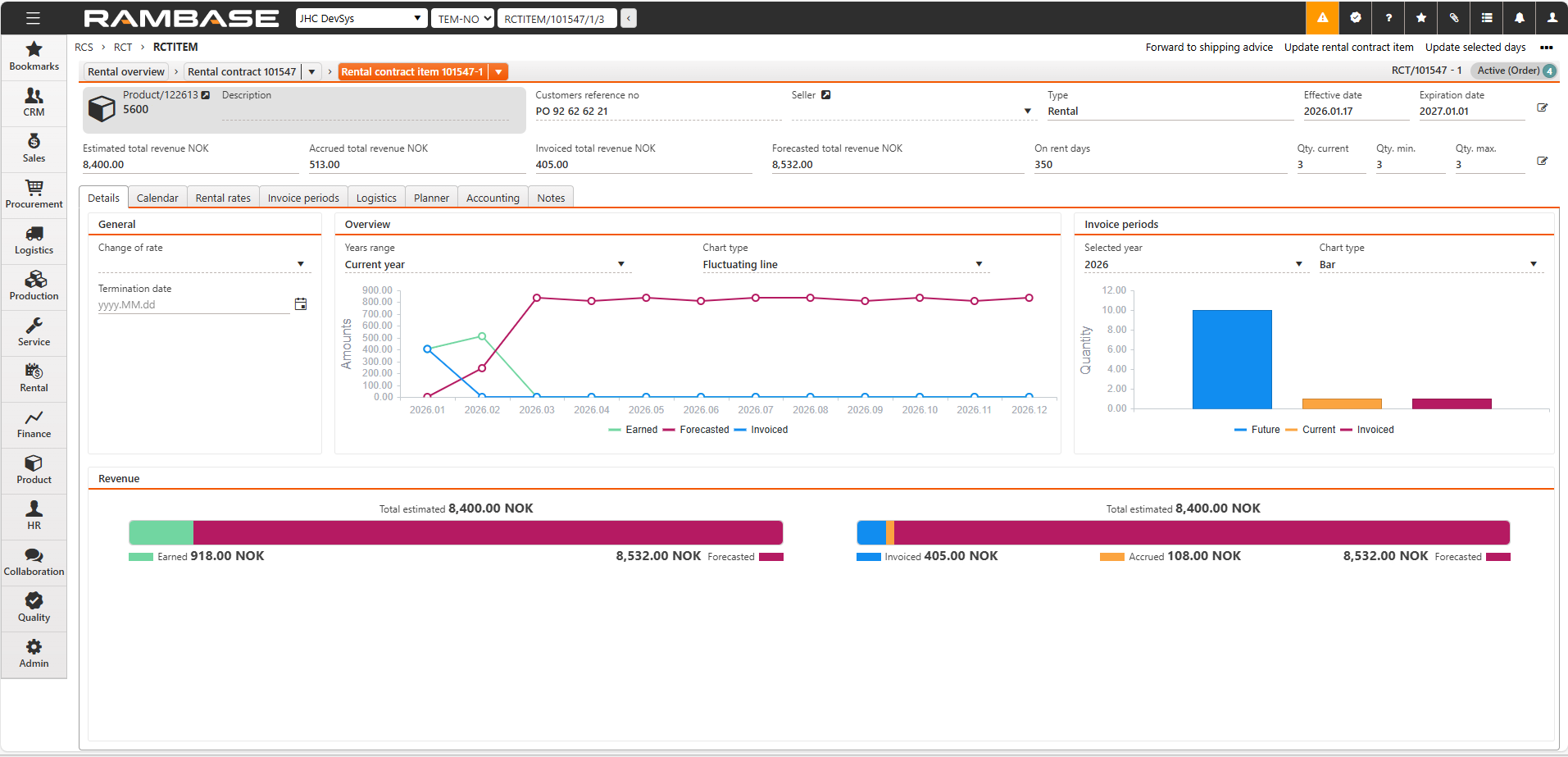
The Header area contains all critical information for the Rental contract item (RCTITEM). Depending on the status of the item, the user may update the information by using the Edit icon.
| Edit icon |

Fields and drop-down menus | Icon | Description |
|---|---|---|
Product |
| Displays the product identifier and name. To view and edit details by opening the product in the Product (ART) application, click the View icon. |
Description | Description of the product, set in the Product (ART) application. | |
Customer's reference no. | Displays the customers reference number. E.g. the internal sales order identifier the customer use in their own system. To edit, click the field and confirm by pressing ENTER. | |
Seller |
| Displays the employee identifier of the user set as the seller for the Rental contract item (RCTITEM). To open the Personel menu (PER) application and view details on the employee, click the View icon. |
Type | Displays the product type of the Rental contract item (RCTITEM). Expected values are Subscription or Rental. | |
Effective date |
| Start date of the recurring contract item. Displayed in yyyy.MM.dd format. To edit, the date, click the Edit icon to open the Update rental contract item popup. NoteThe effective date of the Rental contract (RCT) will be overwritten if a Rental contract item (RCTITEM) with an earlier Effective date, is created. |
Expiration date |
| End of the Recurring contract item (RCTITEM). To edit the date, click the Edit icon to open the Update rental contract item popup. |
| To open the Update the rental contract item popup, click the Edit icon. The following fields can be updated in the popup:
| |
Estimated total revenue CUR | Displays the total estimated revenue from the rental contract item after discount, in system selected currency. | |
Accrued total revenue CUR | Displays the total accrued revenue from the rental contract item after discount, in system selected currency. | |
Invoiced total revenue CUR | Displays the total invoiced revenue from the rental contract item, in system selected currency. | |
Forecasted total revenue CUR | Displays the total forecasted revenue from the rental contract item, in system selected currency. | |
On rent days | Displays the number of days the product is on rent. | |
Qty. current | Rental calendar current day quantity. To edit the quantity click the Edit icon to open the Update rental contract item popup. | |
Qty. min |
| Minimum rental calendar day quantity. To edit the quantity click the Edit icon to open the Update rental contract item popup. |
Qty. max |
| Minimum rental calendar day quantity. To edit the quantity click the Edit icon to open the Update rental contract item popup. |
| The following fields can be updated in the popup:
|

Tabs
Note
The available tabs for the Rental contract item (RCTITEM) is dependent on its type.
Available tabs for rental:
Details
Calendar
Rental rates
Invoice periods
Logistics
Planner
Accounting
Notes
Available tabs for subscription:
Details
Calendar
Rental rates
Invoice periods
Accounting
Notes
The Logistics and Planner tabs are only available for Rental contract items (RCTITEM) of type = Rental.
Details
The Details tab provides the user with relevant information and a graphical overview of revenue; earned, forecasted, invoiced and accrued.
General area
Change of rate drop-down menu - Change type of recurring rate (FIXED, MANUAL, AUTO). Defines if and how the Recurring rate (RRT) can be updated.
To change the rate of the Renal contract item (RCTITEM), click the Change of rate drop-down menu.
Types of rateManual
Auto
Termination date - The date when the item is ended before its scheduled expiration.
Priority level - Defines default priority for new rental unit allocations for given item.
Overview area
The Overview area provides the user with a graphical overview with the option to select years range and chart type.
Years range drop-down menu - Select which year is to be detailed in the chart.
Chart type drop-down menu - Select the chart type to be displayed.
Bar
Area
Fluctuating line
Invoice periods area
The Invoice periods area provides the user with a graphical display of the invoice periods with the option of selecting which year is presented, and chart type.
Selected year - Select which year is to be detailed in the chart.
Chart type drop-down menu - Select the chart type to be displayed.
Bar
Area
Fluctuating line
Revenue area
The Revenue area is separated into two bars presenting; Earned, Forecasted, Invoiced, Accrued along with estimates for the Rental contract item (RCTITEM).
Hover over the bar for more details.
Calendar
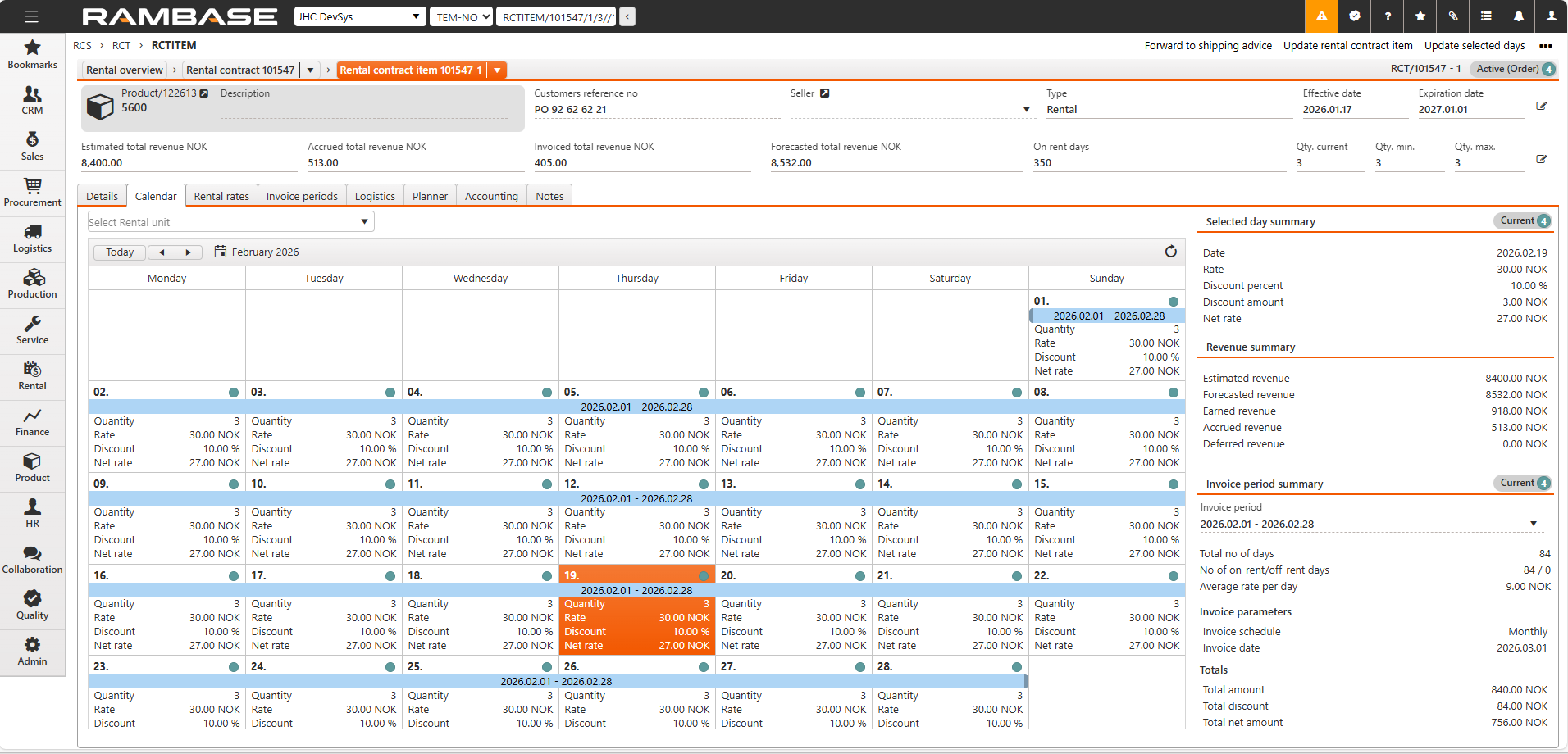
The Calendar tab is comprised of three main areas; Calendar, Selected day , Revenue summary and Invoice period summary. The monthly overview allows the user to view rate, quantity, discount, net rate and which days are ready for invoicing, per day.
The information is summarized in the Selected day(s) area, which supports click and drag to select multiple days.
The Context menu also provides options supported with the click and drag functionality, for example Create invoice for selected days or Update selected days.
Rental rates
The Rental rates tab allows the user to view and change the Recurring rates (RRT) for the Rental contract item (RCTITEM). It also conviently displays the critical rate information a well as the possibility to view and create rate steps.
Rental contract rates list - left side
Column | Icon | Description |
|---|---|---|
St |
| Displays an icon indicating the status of the Recurring rate (RRT). Available statuses are:
Why is the Recurring rate (RRT) not in Status 4?If the Effective date of the Recurring rate (RRT) is a future date, the Recurring rate (RRT) will be set in Status 3 - Future, until the Effective date is reached. |
Currency | Displays the Currency (CUR) of the Recurring rate (RRT) in the three character code format following the ISO 4217 standard. | |
Start date | Displays the date the Recurring rate (RRT) is valid from. | |
End date | Displays the date the Recurring rate (RRT) was, or will become, invalid. | |
Type | States if the Recurring rate (RRT) is of type:
NoteStandard rates can be replaced by either using the Replaces rate drop-down menu in the Recurring rate area for Recurring rates (RRT) in Status 1 - Draft. | |
Product |
| Displays the name and the potential description of the Product (ART) the Recurring rate (RRT) applies for. To view and/or edit details, click the View icon to open the Product (ART) application. |
Rate |
| Displays the identifier of the Recurring rate (RRT). To open the Recurring rate (RRT) application, click the View icon. |
Initial rate step |
| Displays the initial rate step set when creating the Recurring rate (RRT). To view details about the potential rate steps, hover over the Information icon. |


Button | Icon | Description | ||
|---|---|---|---|---|
Change rate button |
| The Change rate button is used to change which Recurring rate (RRT) is valid for the Rental contract item (RCTITEM). Change the rental contract rate
|

Recurring rate area
Field, drop-down menus and checkboxes | Icon | Description |
|---|---|---|
Product |
| Displays the name of the Product (ART) the Recurring rate (RRT) applies to. Can be updated if the Recurring rate (RRT) is in Status 1 - Draft. To inspect or edit the Product (ART), click the View icon. |
Effective date |
| Displays the potential start date of the Recurring rate (RRT), if this was set when either creating the Recurring rate (RRT) or when the rate was is Status 1 - Draft. To edit, click the Effective date field and provide a date in the yyyy.MM.dd format, or click the Calendar icon. |
Recurring period | The recurring period decides the interval of the Recurring rate (RRT). Available intervals:
The interval is set when creating the Recurring rate (RRT), and can be adjusted if the Recurring rate (RRT) is in Status 1 - Draft. To adjust the Recurring period, click the Recurring period drop-down menu and choose one of the listed available intervals. | |
Pricing method | The method of which total price will be calculated for this Recurring rate (RRT). 1 - Incremental: Sum of respective rates of each step 2 - Flat rate: One price decided by the quantity of the product. | |
Currency | Displays the selected currency for the Recurring rate (RRT). Can be changed if the Recurring rate (RRT) is in Status 1 - Draft. To edit, click the Currency drop-down menu and select a available currency from the list. | |
Expiration date |
| Displays the end date of the Recurring rate (RRT), if this has been set when creating the rate, or edited in Status 1 - Draft. |
Rate aspect | Displays the current rate aspect of the rate. Available options are:
The Rate aspect is set when creating the Recurring rate (RRT) | |
Location | Displays the three letter abbreviation for the selected Location (LOC) for the Recurring rate (RRT). This is set when creating the Recurring rate (RRT). Can only be updated in Status 1 - Draft. To update, click the Location drop-down menu, and select a new Location (LOC) from the list. | |
Type | Available options are:
NoteRecurring rates (RRT) of type Standard can replace or be replaced by other rates in Status 1 - Draft. | |
Replaces rate | If the selected Recurring rate (RRT) has replaced a previously created rate, the identifier of the replaced Recurring rate (RRT) will be displayed. If the selected Recurring rate (RRT) is in Status 1 - Draft, the Replaces rate drop-down menu can be used to replace a Recurring rate (RRT) in Status 4 - Active, of type Standard. | |
Default for product and currency checkbox |
| Determines whether or not the Recurring rate (RRT) is a default rate for the combination of its product and currency. |


Rate steps list
Column | Icons | Description |
|---|---|---|
From quantity | The minimum number of intervals, or quantity, for triggering the rate step. | |
Rate | Value of the rate step. | |
Actions |
| The icons in the Actions column can be used to edit or delete the Rate step. To edit either the From quantity of the rate step or the Rate, click the Edit icon. Unable to edit or delete?The Recurring rate (RRT) must be in Status 1 - Draft or Status 3 - Future, to be enabled for editing or deletion. |
Add rate step button |
| The Add rate step button is used for adding rate steps. The rate steps are based on the setup of the Recurring rate (RRT) details. Add a rate step to the Recurring rate (RRT)
NoteRate steps can only be added to Recurring rates (RRT) in Status 1 - Draft. |


Invoice periods
Displays invoice periods as items, aggregates all items which are invoice in that period, click right most icon in the Items column to display period billing items. Note that Status 3 are future periods. The Billing documents column is useful in accessing the Sales invoices (CIN) application.
Column | Icon | Description |
|---|---|---|
| To select all, click the Empty checkbox icon. | |
| Displays the status of the listed invoice periods for the Rental contract (RCT). To select an invoice period for handling via the Context menu, click the Status. Available statuses:
| |
Start date | Displays the start date of the invoicing period in yyyy.MM.dd format. | |
End date | Displays the end date of the invoicing period in yyyy.MM.dd format. | |
Planned invoice date | Displays the planned invoice date for the period in yyyy.MM.dd format. | |
Amount | Displays the total amount of the period excl. discount. | |
Discount amount | Displays the total discount amount for the period. | |
Net amount | Displays the total amount of the period incl. discount. | |
Ready for invoicing | Amount ready for invoice. | |
Proforma amount | Amount when invoice is created but still in Status 1. | |
Pending payment amount | Amount when invoice is created and waiting for payment (status 4). | |
Paid amount | Invoice is in status 9. | |
Credited amount | Amount if any of the amount in the invoice period is credited. | |
Billing documents | Displays the Sales invoice (CIN). To open the Sales invoice (CIN) application, click the icon. | |
Total no. of days | Displays the total number of days for the contract. | |
No. of on-rent days | The total number of days units has been on rent (Days * Qty). | |
No. of off-rent days | Total number of days any rental unit has been off rent during the rental period. | |
Currency | Displays the three character code following the ISO 4217 standard. | |
Customers ref. no | Displays the customer reference number for the invoice period. | |
Items |
| To open the Billing period items popup, which displays all billing period items organized by product, click the View icon. |

Logistics
Check out area
Field / Drop-down menu | Description |
|---|---|
Check out location | Location identifier. |
Expected check out date | Expected check-out date (shipment). |
Requested delivery date | The date the customer would like to have the rental unit at their site. |
Confirmed delivery date | The confirmed date that the customer will have the rental unit at their site. |
Remaining quantity for shipping | Quantity of rental units that haven't been shipped yet. |
Shipment area
Field/Drop-down menu | Description |
|---|---|
Shipping address | Address identifier. |
Delivery terms | Shipping details can only be updated until an item is shipped. |
Shipping service | Shipping service identifier. |
Check in area
Field/Drop-down menu | Description |
|---|---|
Check in location | Location identifier. |
Expected check in date | Expected check-in date (return). |
Planner
List
Active rental units
Column | Description |
|---|---|
St | Potential statuses:
|
Rental unit Id | Rental unit identifier. |
Lock | Click the lock icon to change the allocation level. |
Serial number | Serial number of the product unit assigned to the rental unit. |
Product collection | Name of the product collection. |
Product | Name of the product. |
Current location | Unique abbreviation/short name of the current location. |
Home location | Unique abbreviation/short name of the home location. |
Available from | Date from which the rental unit is available. |
Calendar
Shows assignments of the rental units in the list with their operational status, with an option to drag and drop assignment to select other rental units.
Accounting
The Accounting tab provides the user with relevant information including VAT, linked Finance project (PRJ) and Department (DEP).
Account drop-down menu - To link a General ledger account (ACC) to the Rental contract item (RCTITEM), click the Account drop-down menu. If already linked, the field displays the general ledger account number and name.
To open the Chart of accounts (ACC) application, click the View icon.
Department drop-down menu - To link a Department (DEP) to the Rental contract item (RCTITEM), click the Department drop-down menu. If already linked, the field displays the Department identifier and name (DEP).
To open the Department (DEP) application, click the View icon.
VAT code drop-down menu - To select a VAT code, click the VAT code drop-down menu.
To open the VAT menu (VAT) application, click the View icon.
VAT percent field - Displays the value added tax percent of the percent validity. Based on the selection made in the VAT code drop-down menu.
Finance project drop-down menu - Displays the active or new and active finance projects.
Asset drop-down menu - Displays the active or new and active assets.
Notes
Note to customer field - Note for contract item
Internal note field - Internal note for the contract item
Context menu options
Option | Description |
|---|---|
Forward to shipping advice | When a rental item is ready for shipment, this option is used to forward the rental item to Shipping advice (CSA). This option is for the specific item you are on. The option is also available as multiselect from the main level.After the item has been forwarded to shipping advice, you have to use standard RamBase procedure to pick and ship the shipping advice. |
Update rental contract item | This is dependent of the status of the item for rental and subscription item in Status 1 you can change: Effective date, Expiration date, Quantity, Discount and Recurring rate.All of these fields may not be available for change in a higher status. |
Update selected days | In the calendar tab you can select days and choose Update selected days.Her you can update: From, To, Subscription/Rental on/off, Quantity, Dicsount, Recurring rate, Reason. |
Invoice and payment | |
Create invoice for selected period | This is available when you select an invoice period in the Invoice periods tab. Her you can choose to invoice the selected period, or set dates from and to that you would like to invoice.It is possible to create invoice for periods in Status 8, and also for periods in 4 if you would like to prepare invoices in advance, for instance if you are going on vacation. |
Create credit note for selected invoices | Available if an invoice period is selected from the Invoice periods tab - that contains invoices. In the popup you can select which invoice you would like to credit. |
Close invoice period | With this option you can close an invoice period. For instance if you have invoiced a customer wrongfully, you will create a credit note. When doing so the invoice period is reopened, so that you can do any changes and create a new invoice. Or in some cases you simply would like to not issue a new invoice, and then you can close the invoice period. |
Reopen invoice period | Use this option to reopen an already closed invoice period. |
Open quote | Rental quote items can be re-opened using the Open Quote context menu option. The action applies to both active and expired rental quotes. When executed, the quote is returned to an editable state. If the related Rental contract (RCT) is closed, it will also be re-opened. A confirmation dialog is shown when selecting Open Quote, requiring a mandatory reason for re-opening the quote. The action cannot be completed without this input. The quote is re-opened as a whole and applies to all items. Items that should not be included can be removed manually after re-opening. Items that have already been transferred to order stage cannot be re-opened. In addition, items are skipped if the product is inactive or if the sales type has been changed from Sales & Rental to Sales. If the Rental contract (RCT) is reopened, the expiration date is set to current date + 1 day. If Company setting (CSV), (CSD/101060) is active, the expiration date is taken from the Company setting (CSV) configuration instead. If previously used standard Recurring rates (RRT) have expired, the system copies the previous Recurring rates (RRT) into a new Recurring rates (RRT) with matching price criteria. A toaster message is shown in this case. All quantities, products, rates, locations, and addresses remain unchanged during re-opening. |
Cancel | |
Cancel subscription item | Use this option to cancel a subscription item before expiration date. |
Cancel rental unit | In a rental item you can use this option to cancel selected rental units. |
Inspects and views | |
Revision history... | Shows a log of changed fields in the item. |
Revision history for selected day... | Select a day in the calendar and this option to view the changes of the specific day |