Rental units ready for check-in (RUI)
Navigate to the application
Option 1: RamBase menu → Rental → Rental contract → Rental unit check-in
Option 2: Click the Program field and type "RUI" and press ENTER.
Click here to read more about the user interface.
Overview
The Rental units ready for check-in (RUI) application handles the return of assets from clients. This includes the process for doing the put away of the asset with the Forward to goods reception functionality. Meaning taking the asset into the depot there might occur repair, cleansing and/or servicing. Dependent on the type of asset the check-in process covers the process of verifying the condition but also, if the asset is subject to new rental period in short term, the check-in process should contain all necessary action to prepare it for future rental.
Notable functionality
Select check-in basket - When processing returns, selected Rental units (RUT) can be collected in a basket before they are forwarded to Goods reception (SSA). The basket provides an overview of the selected Rental units (RUT), including related Rental contracts (RCT), Rental contract items (RCTITEM), ownership information, stock locations, return dates, and future rental commitments. Users can apply default values, update individual units, remove units from the basket, and validate the return before processing. After processing, a summary displays the number of successfully checked-in units, any failed units with the reason for failure, and links to the created Goods receptions (SSA).
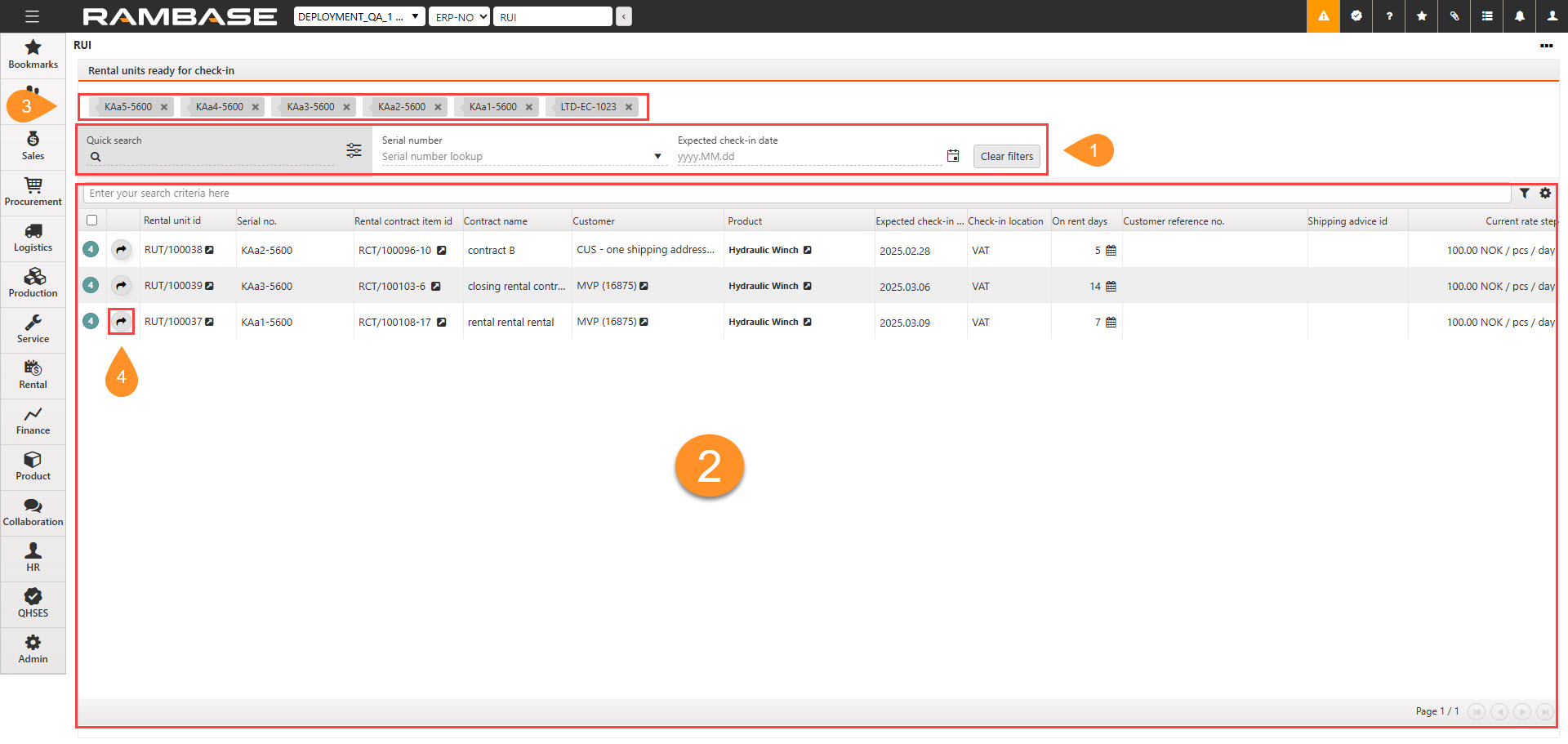
If Serial numbers are filtered on, the applied serial numbers will be listed here. Serial numbers are added in the Serial number drop-down menu in the Header.
Forward to goods reception icon
Header
The Header area contains the application's options for filtering. It includes a quick search, the option to filter on multiple separate serial numbers, as well as the expected check in date.
Quick search field and icon - The Quick search field allows for the inclusion or exclusion parameters. Click the Quick search icon to enable or disable the optional parameters.

Quick search icon
Optional search parametersContract name
Customer
Customer's reference no.
Contract identifier
Product name
Serial number drop-down menu - The serial number drop-down menu allows for the selection of individual serial numbers to be filtered on. Serial numbers which are applied to the filter will be listed at the top of the application. To remove a serial number from being filtered on, click the associated Remove icon.
Expected check-in date field and icon - To filter on a Rental units (RUT) with expected check in date on, or later than a specific date, type or select a date by clicking the Calendar icon.

Calendar icon
Grid/List
The list includes standard RamBase search and filtering options which you can read more about in the tip box below.
Search field, filter builder and column settings
The header contains multiple options to filter the list:
Active and future rentals - To filter the list on Rental units (RUT) in Status 3 - Planned or Status 4 - Active, select the Active and future rentals filter.
Check-in location VAT - where VAT is the warehouse location listed in your PER. If Warehouse location is empty, the standard company location is the default.
Column | Icon | Description |
|---|---|---|
| Displays the current status of the Rental unit (RUT). The column supports multi-select. To select individual Rental units (RUT), click the Status icon. To select or deselect all, click the Checkbox icon in the Header column. Potential statuses are:
| |
| This is an action icon to forward the rental unit to goods reception and return it to the warehouse. | |
Rental unit id |
| Displays the Rental unit (RUT) identifier. To view and edit details on the Rental unit(RUT) by opening the Rental unit (RUT) application, click the View icon. |
Serial no. | Displays the serial number assigned to the Rental unit (RUT). | |
Owner | Displays if the rental unit is owned by one of the suppliers or one of the customers. | |
Rental contract item id. |
| Displays the Rental contract item identifier (RCTITEM).
|
Contract name | Displays the name of the Rental contract (RCT). | |
Customer |
| Displays the name of the Customer (CUS). To view and/or edit details, click the View icon to open the Customer (CUS) application. |
Product |
| Displays the name and description of the Product (ART) which applies to the Rental unit (RUT). To open the Product (ART) application, click the View icon. |
Expected check-in date |
| Displays the date which the asset is expected to be returned. If the expected check-in date for the rental unit is significantly ahead a warning icon will be present in the column. |
Check-in location | Displays the potential three letter abbreviation of the Location (LOC) where the Rental unit (RUT) is expected to be checked in. | |
On rent days |
| Displays the number of days the Renal unit (RUT) is rented out. To open the Rental contract item (RCTITEM) application to view the On rent days in the Calendar tab, click the Calendar icon. |
Customer reference no. | Displays the customers reference number. E.g. the sales order identifier the customer might use in their internal system. | |
Shipping advice id. |
| Displays the shipping advice item that this unit was shipped out on. To view and edit details, click the View icon to open the Shipping advice item (CSAITEM) application.
|
Current rate step | Displays the current rate step of the Rental unit (RUT).
The rate steps are defined in the Recurring rates (RRT) application. To view details on the rate steps for the Rental contract item (RCTITEM), click the View icon in the Rental contract item id column, and once in the Rental contract item (RCTITEM) application, click the Rental rates tab. |