Product revision
Overview
Accessing the Product revision (PRE) application is done from the Product (ART) application.
Tip
Navigate to the application
Option 1
From the Product (ART) application, create a new product.
Activate the article from the context menu area. The article will now be in Status 4 - Active.
Click the Revision field in the Product (ART) application.
Option 2: Click the Program field and type "PRE/ + Identifier" and press ENTER.
Example: "PRE/123456"
Click here to read more about the user interface.
The Product revision (PRE) application is used to conduct revisions of product types without structures. This refers to all product types that are not K - Kit.
The application is divided into two areas, the product revision space on the left side and the revision details on the right side.
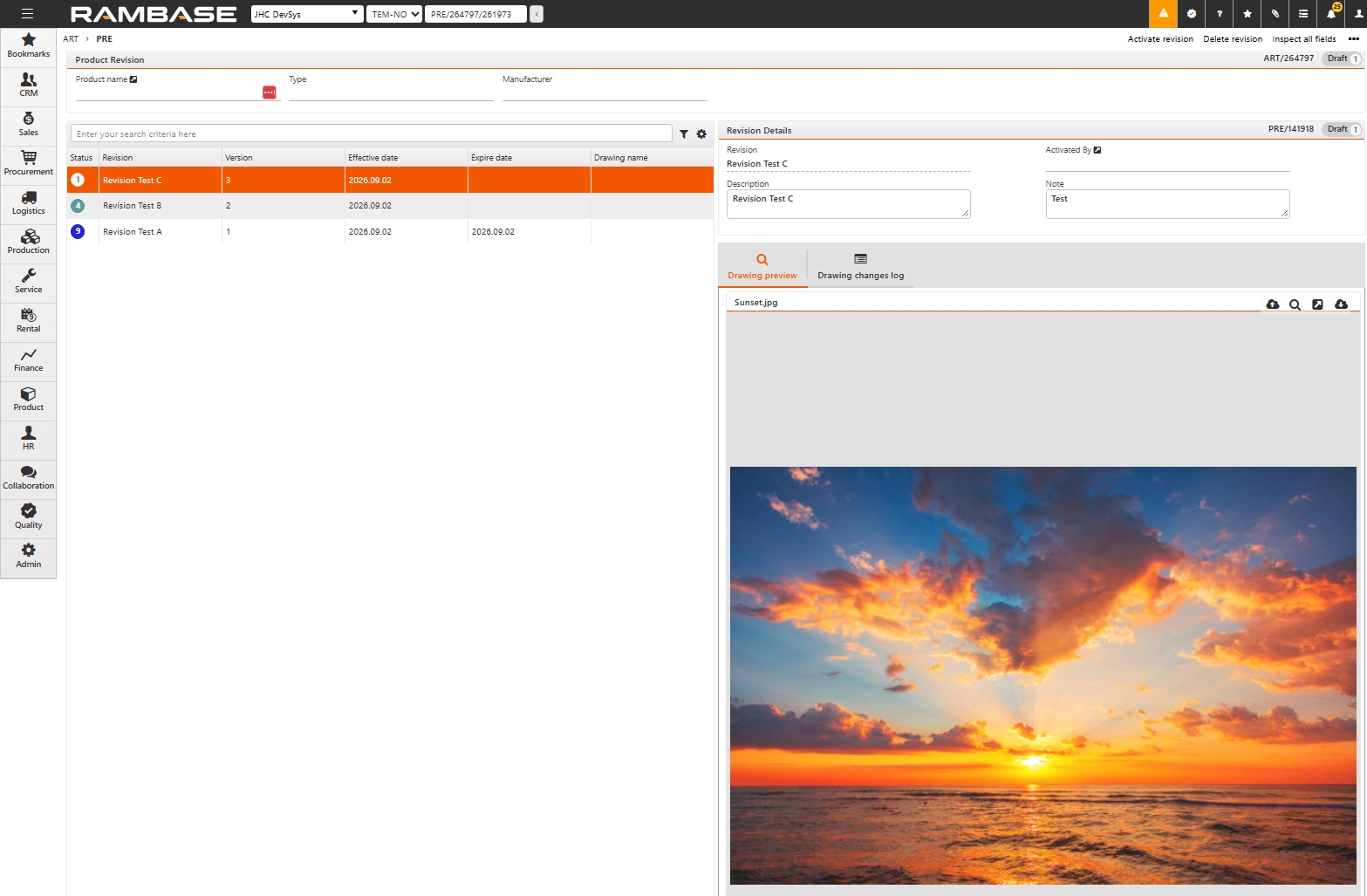
Header of the product revision space:
The header of the Product revision space displays information from the Product (ART) application. This includes information about the Product name, Type, and Manufacturer.
Click the View icon next to the Product name to open the Product (ART) application.
Product Revision area
The table below describes the columns in the Product Revision area.
Columns | Description |
|---|---|
Status | Displays the status of the Product revision. |
Revision | Displays the title of the Product revision. |
Version | Displays the version of the Product revision. |
Effective date | Displays the date the revision was created. |
Expire date | Displays the date the revision expired. The expiration date is effective once a new version of the product revision has been activated. |
Drawing name | Displays the name of the attached image. |
Revision Details area
The table below describes the fields in the Revision Details area.
Fields | Description |
|---|---|
Revision | The name of the Revision can be edited. Cannot be edited in Status 4 or 9. |
Description | Additional information can be written about the Product revision. Cannot be edited in Status 9. |
Activated By | Displays the user who activated the revision. |
Note | Additional information can be written about the Product revision. Cannot be edited in Status 9. |
Drawing area
The table below describes the tabs in the Drawing area.
Tabs | Description |
|---|---|
Drawing preview | Displays a preview of the uploaded image. Options available from the Drawing preview:
|
Drawing changes log | Displays a historical overview of changes made to the associated image. |
Context menu options
The context menu options are found in the top right corner by clicking the Context menu icon. The available options are listed below.
Option | Description |
|---|---|
Activate revision | Click to activate the revision. When a revision is activated, the status is changed from Status 1 to Status 4. |
Delete revision | Click to delete the revision. Only revisions in Status 1 (edit mode) can be deleted. Deleting a revision removes it from the Product revision area. |