Rental units (RUT)
The Rental units (RUT) application in RamBase is used to manage individual rental items within product collections. It provides tools to register, categorize, and monitor rental units, including their availability, location, ownership, and financial value. Users can view units in grid or tree format, assign them to rental contracts, track their lifecycle, and perform actions like registering, transferring, or closing units through context menu options. The application also includes tabs for rental history, comments, and performance metrics, making it a central hub for rental operations.
Navigate to the application
Option 1: RamBase menu → Rental → Rental contract → Rental units
Option 2: Click the Program field and type "RUT" and press ENTER.
Click here to read more about the user interface.
Overview
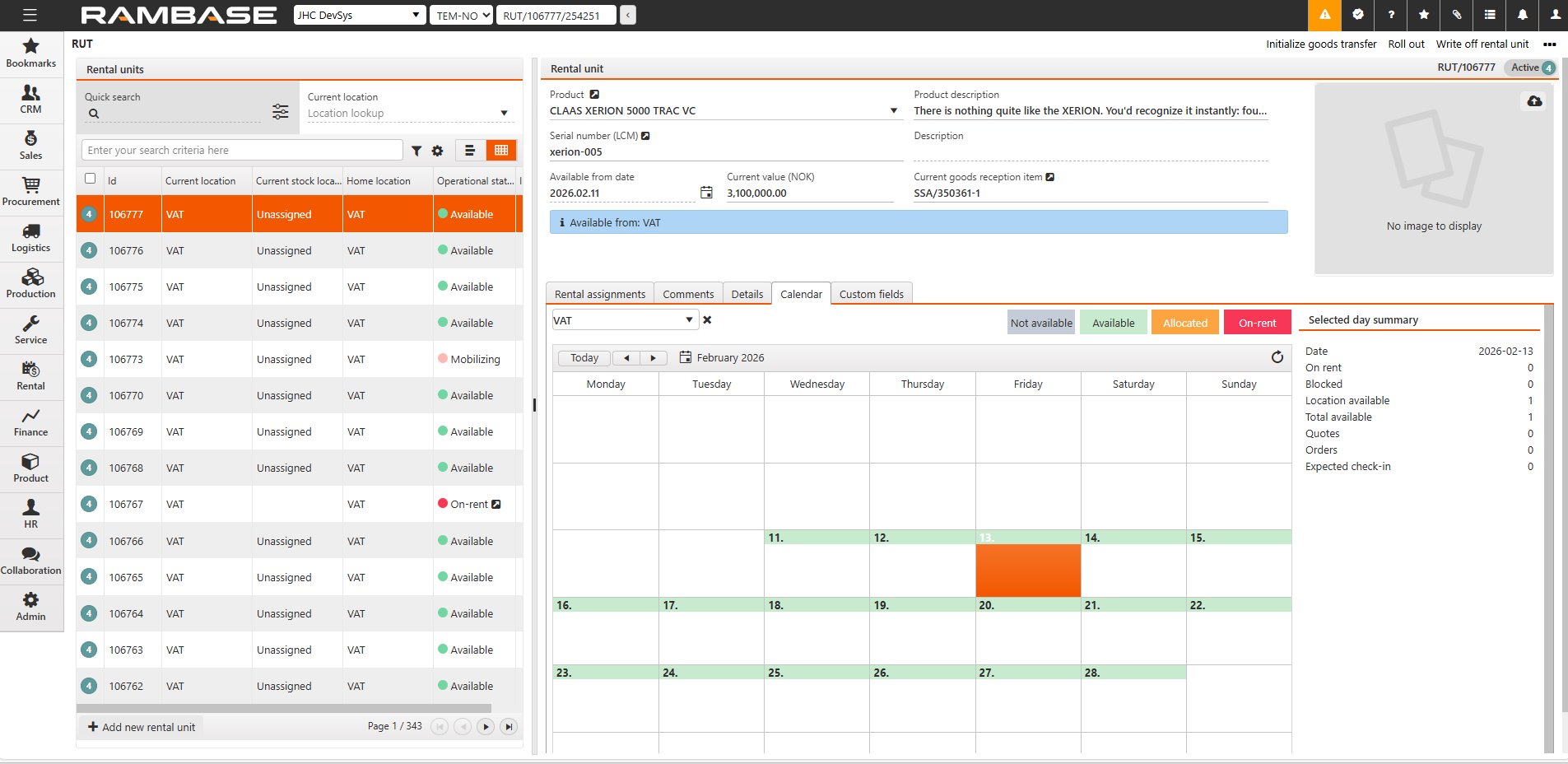
Rental units area
This is the list view showing all rental units in either grid or tree format. It includes key columns like ID, serial number, product, location, and status. Users can filter, search, and sort units to quickly find what they need.
Rental unit area
Displays the metadata for the selected rental unit. This includes product details, serial number, availability dates, financial value, and ownership information. It’s where you view and edit the core data for each unit.
Tabs
Rental assignments
Displays the rental history and future bookings for the unit, including contract references, rental periods, check-in/out locations, and maintenance days.
Comments
Allows users to log notes or updates related to the rental unit. Comments are added via the “Add new” button and stored for reference.
Details
Shows additional metadata of the rental unit, including product info, initial goods reception items, product collection, fixed asset, and location details.
Calendar
Provides a visual overview of the unit’s availability and activity. Includes a location filter and a summary of metrics like on-rent status, blocked units, quotes, orders, and expected check-ins.
Custom fields
Provides the possibility to add a Custom note and Certification date.
Rental units area - Left side - Header and Grid or Tree
Header
The header area is used to decide how the area is to be presented, which information is displayed by selecting view, filters and columns.
Search field, filter builder and column settings
The header contains multiple options to filter the list:
The Rental units area can either be presented as a grid, or a tree.
Icon | Name | Description |
|---|---|---|
| Show tree | To categorize the Rental units (RUT) as product collections and display them as an expandable tree, click the Show tree icon. Name and serial number will be displayed as static columns |
| Show grid | To view all Rental units organized as a standard RamBase list, click the Show grid icon. |

Grid
If the Rental units (RUT) are displayed as a grid, the following columns are available:
Column | Description |
|---|---|
St | Displays the status of the Rental unit (RUT). Potential statuses for Rental units (RUT) are:
|
Id | Displays the Rental unit identifier (RUT). |
Serial number | Displays the serial number of the Product unit (LCM) assigned to the Rental unit (RUT). |
Product collection | Displays the name of the Product collection (ART). |
Product | Displays the name of the Product (ART). |
Product description | Description of the product. |
Current location | Displays the three letter abbreviation of the current Location (LOC). |
Current stock location | Name of current- and parent stock locations, including separator for location. |
Home location | Home location of rental unit. |
Owner name | Displays the name of the customer/supplier who owns the Product unit (LCM). |
Available from | Displays the date from which the Rental unit (RUT) is available. |
Operational status | Assignment status of a given rental unit for current day. |
Is blocked | Indicates if a rental unit is blocked for rental. |
Tree
The Rental units (RUT) can be displayed in a tree view allowing quick navigation between Product collections, different Products and specific Rental units.
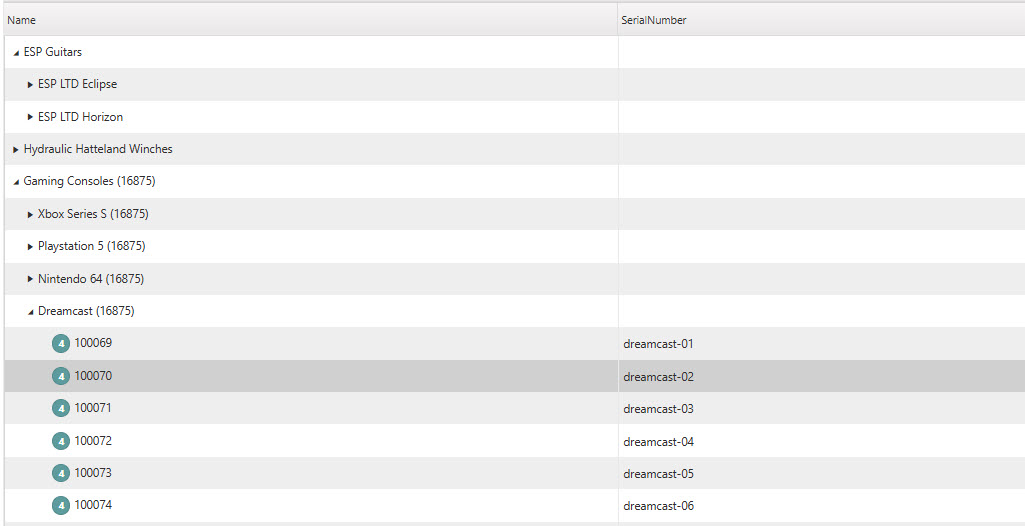
To expand or minimize each level, click the Arrow icons located in the Name column.
Name - Depending on the levels expanded, the Name column will potentially display the Product collection name, Product name and Rental unit identifiers (RUT).
Description/Serial number - When the tree is fully expanded, displaying the Rental units identifiers (RUT), potential serial numbers of the Product unit (LCM) are displayed.
Current location - Displays the three letter abbreviation of the current Location (LOC).
Current stock location -
Home location - Home location of rental unit.
Owner name - Displays the name of the customer/supplier who owns the Product unit (LCM).
Operational status - Assignment status of a given rental unit for current day.
Is blocked - Indicates if a rental unit is blocked for rental.
Active and draft rental units
Active rental units
Rental unit area - Right side
Header
The Header on the right side details the Rental unit (RUT) selected in either the grid or tree.
Tip
When the Rental units list is organized in the tree view, selecting a product collection or a specific rental unit will give different options in the header.

Default options:
Field/Dropdown menu | Icon | Description |
|---|---|---|
Product |
| Displays the name of the Product (ART) assigned to rental unit. |
Product description | Displays the description of the Product (ART) assigned to rental unit. | |
Product type | Type of product. | |
Product collection | Name of product. | |
Sales type | Sales type of the product. A rental unit will always be of sales type Sales and rental. | |
Serial number (LCM) |
| Displays the serial number of the Product unit (LCM) assigned to the Rental unit (RUT). |
Description | Description of rental unit | |
Available from date |
| Date from which the rental unit is available. |
Current value | The total price in company currency from the Goods reception (SSA), or Balance from the Fixed asset (FAR) if the rental unit is tied to a fixed asset. | |
Current goods reception item |
| The current goods reception that the rental unit is located on. This will get a new value each time the rental unit is returned from rent. To open the Goods reception item (SSAITEM), click the View icon. |
Location | Three letter location abbreviation. | |
Available stock quantity | Displays the number of items currently in stock at your chosen location, alongside the total stock quantity, separated by a slash. The number before the slash represents the available quantity, while the number after the slash indicates the total stock quantity. | |
Available fleet quantity | Displays the number of items currently in rental fleet at your chosen location, alongside the total fleet quantity, seperated by a slash. The number before the slash represents the available quantity, while the number after the slash indicates the total rental fleet quantity. |


Options available if the Customer (CUS) owns Rental units (RUT):
Field/Checkbox | Icon | Description |
|---|---|---|
Customer | Name of the customer that owns this rental unit. | |
Allow non owner rental | To allow rental for other customers than the owner, user has to choose the menu option Allow non owner rental, and set the dates for a period where the unit is available for other customers than the owner | |
Start date |
| The start date the customer owned rental unit can be rented out to others. |
End date |
| The end date the customer owned rental unit can be rented out to others. |

Tabs
Tabs are dependent on whether you in the tree have marked a product or a rental unit
For product these tabs are available:
Rental contract item
Fleet availability
Calendar
Standard recurring rates
For rental unit these tabs are available:
Rental assignment
Comments
Details
Custom fields
Calendar
Rental assignments
Active and future rentals
Column | Description |
|---|---|
St | Displays the status with regard to the stage of the item Potential statuses:
|
Date | Displays the start date of reservation. |
Return date | Displays the end date of reservation. |
Rental contract item | Rental contract item identifier |
Check out location | Unique abbreviation/short name of the check out location. |
Check in location | Unique abbreviation/short name of the check in location. |
Reference | Shows customers reference number of the contract item. |
Comments
To add a comment, click the Add new button, enter your text in the field, and click Save. Comments are used to log notes or updates related to the rental unit.
Details
General
Field/Dropdown menu | Icon | Description |
|---|---|---|
Product collection |
| Displays the name of the Product collection, which is defined in the Product (ART) application. To view and edit details, click the View icon to open the Product (ART) application. |
Product collection description | Description of the product collection, which is defined in the Product (ART) application. | |
Fixed asset | Fixed asset assigned to the rental unit. | |
End of life date |
| Date to which the rental unit is available. |
Initial goods reception item |
| Initial goods reception that was used when moving a product from sales to the rental fleet. To open the Goods reception item (SSAITEM), click the View icon. |
Current location | Current location of rental unit | |
Home location | Home location of rental unit | |
Current stock location | ||
Last counted at | The last date the rental unit was counted. |
Metrics
Columns | Description |
|---|---|
Earned revenue | Invoiced amount for the rental unit in company currency. Displays only amounts from invoices in Status 4 or higher. |
Fleet age | Time expressed in months since first activation in the fleet. |
Original Equipment Cost | Undepreciated acquisition cost of the equipment, fixed in company currency. |
Time utilization (TU) | Time a unit is on-rent divided by total available time (OEC-weighted) |
Financial Utilization (FU) | Pure rental revenue divided by average OEC |
Realized contracts | Confirmed contracts that contribute to revenue |
Time on rent | Number of days a unit is on-rent and generating rental revenue |
Calendar
The calendar view presents the operational status for each day, along with a summary of the selected day on the right-hand side.
Context menu options
Context menu option | Description |
|---|---|
Initialize goods transfer | This functionality is used when the rental unit should be moved from one location to another within the company. |
Allow non owner rental | Available for customer owned rental units. This allows the user to set a period where the customer owned rental unit can be rented out to other customers. |
Deactivate non owner rental | User has to use this option if the non owner rental period should be shortened. |
Roll out | If the rental unit should be sold, or no longer part of the rental fleet, this option is used to set the unit back to sales stock. |
Delete rental unit | This option is only available for rental units in draft mode (status 1), and is used if you made a new rental unit by mistake. |
Write off rental unit | Sometimes a rental unit gets lost, or is broken. This option is used for writing the rental unit off, with an option to set a scrap reason. |
Restore rental unit | Use this option to restore a rental unit that was accidently written off. |
Revision history... | Shows all changes done to a rental unit. |