Supplier billing (SUPBILL) application
Supplier billing (SUPBILL) is a report with extensive filtering possibilities which gives an overview of total billing from supplier invoices and credits that are registered.
Navigate to the application
Option 1: RamBase menu→Finance→Payables→Supplier billing
Option 2: Click the Program field and type "SUPBILL" and press ENTER.
Click here to read more about the user interface.
The following areas are described in the sections below:
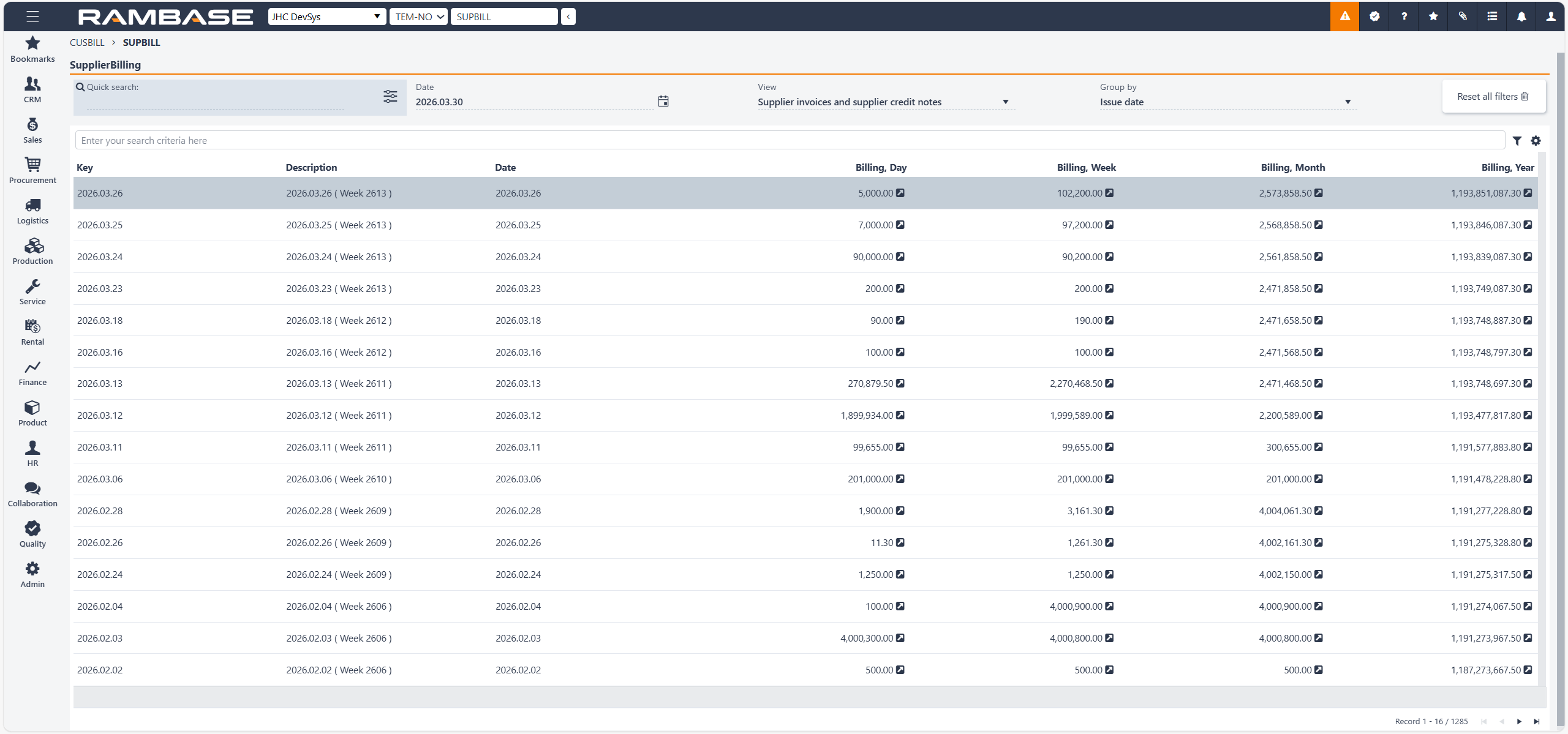
The Supplier billing header
The Supplier billing list
The Supplier billing header
The Supplier billing header contains fields which are used to filter the list below.
Fields and buttons | Description |
|---|---|
Quick search field | Click on the Search field to look up a specific Supplier billing (SUPBILL). Click on the Quick search filter icon to select which of the following options are to be included in the search:
|
Date field | Click on the Date field to filter the Supplier billing (SUPBILL) up to a specified date. Click on the Calendar icon to select, or search for, a date from the Calendar popup. |
View field | Click on the View field to filter the Supplier billing (SUPBILL) list on a specific supplier invoice or credit note. Click on the Arrow down icon to select which of the following options are to be included in the search:
|
Group by field | Click on the Group by field to filter the Supplier billing (SUPBILL) list to select which of the following options are to be included in the search:
|
Reset all filters button | Click the Reset all filters button to remove all filters and show all Customer billing (CUSBILL) in the list. |
The Supplier billing list
The displayed Supplier billing (SUPBILL) are based on the selections made in the Supplier billing fields area.
The Supplier billing list includes a search field. In addition to the fields and variables in the header, the scope of the search can be further filtered by clicking the Filter builder icon to the right of the search field.
Clicking the Filter builder icon will display a popup with the options to add a Standard filter and/or Create custom filters. All custom filters can be saved and then added to the My saved filters area.
The user can customize the order of the columns by drag and drop, in addition to hover over icons and columns for further descriptions.
Columns | Description |
|---|---|
Key | GroupBy key for the procurement billing. |
Description | Description of the key. |
Date | Date which is used for the calculations. |
Billing, Day | Billing amount of the day. |
Billing, week | Billing amount of the week. |
Billing, month | Billing amount of the month. |
Billing, year | Billing amount of the year. |