Create VAP on a manually created general ledger posting
Create manual general ledger posting
To open the General ledger postings (ATR) application, find Finance in the RamBase menu and then General ledger. Click General ledger postings to enter the General ledger postings (ATR) application.
Click the Create new general ledger posting icon in the lower left hand corner.
Fill in the following fields in the popup:
Transaction date - Select the transaction date for the posting.
Period - Select the period for the posting.
Category- Select the category for the posting.
Note- Optional, add a note.
Click the Create button to create a general ledger posting document in Status 1.
Add a posting on both the debit and credit account or only on the debit or credit account in the popup.
Click the Create new general ledger posting item icon in the lower left hand corner to open the popup.
Add Account(s), amount and dimension(s).
Check Create another option to leave the popup open.
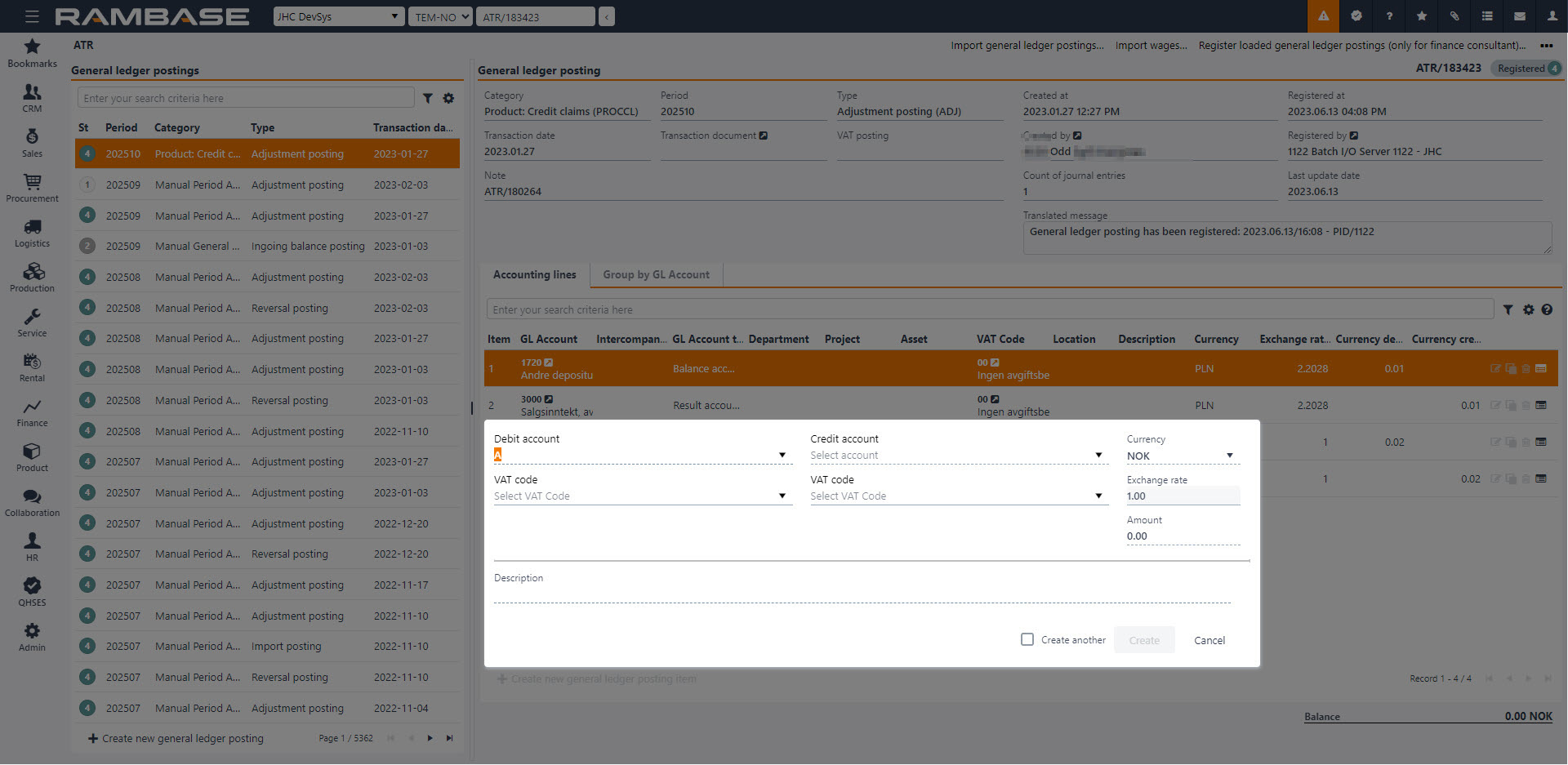
Click the Create button when finished to create new item.
After you have added all the general ledger entries, open the menu and click on the Register General Ledger Posting option.
Create VAP on a manually created general ledger posting
If you add a general ledger entry with a VAT code, the VAT posting (VAP) can be created automatically or manually, depending on the Company setting (CSV), Automatically create VAT posting when manual GL postings are registered.
If the setting is ON, RamBase automatically creates the VAP when the manually created general ledger posting is registered.
If the setting is OFF, RamBase does not create the VAP automatically. After registering the general ledger posting, open the menu and select Create VAT Posting from General Ledger Posting.
The VAP posting is used to include the relevant VAT in the VAT return.
After registration, click on the Create VAT Posting from General Ledger Posting option. This is necessary in order for the VAT postings to be registered in the VAT return. This will give the ATR document a VAP document that is the basis for the VAT return.
Keeping the setting OFF allows users to make manual corrections to VAT accounts without automatically affecting the VAT return. The VAP can then be created manually when the posting should be included in the VAT return.
ATR posting rules
Each ATR must have postings on both the debit and credit side.
You normally post with positive sign on both side.
For some countries it may be required to post with negative amount on the debit or credit side to keep all postings on one account on the same side. In RamBase it is possible to post negative numbers on both the debit and credit side. Please note that if you post an negative amount on the debit side, this will result in the same result as if you had done positive posting on the credit side and the other way around.
If an ATR only consists of debit postings or only of credit postings, the user will not be able to register to ATR. To be able to register to ATR, both a debit and a credit posting need to be added for the GL account set up in ACD/DEBITCREDITCLEARINGACCOUNT. The sum of the postings for ACD/DEBITCREDITCLEARINGACCOUNT will be 0.