Quality control trigger (QCT)
Quality control trigger (QCT) define when quality control is required during incoming Goods reception process.
Quality control triggers allow you to control:
When a quality control notification is required
Which products, suppliers and locations it applies to
What message is shown to the users in Goods reception item (SSAITEM)
When a Purchase order item (SPOITEM) matches a configured Quality control trigger (QCT), a quality control notification is automatically created upon registration.
The quality control requirement is visible early in the process, for example in Receive goods (RPP), allowing warehouse management to plan resources and tools accordingly. The requirement follows the item through the logistics flow and remains visible when the item is forwarded to Purchase order response (SOA) and Goods reception (SSA), including in the Expected goods view.
If a Purchase order item (SPOITEM) does not match any QCT, quality control notifications can still be added manually.
When the defined conditions are met, a notification is created and displayed on the Goods reception item (SSAITEM) to ensure the required approval is performed.
During the quality control process, the inspection can result in one of the following outcomes:
Approved - Quality of the goods are aligned with the requirements
Cancelled - A quality manager is allowed to override the requirement for quality control and decided that it's not needed anyway
Rejected - Allows user to specify a certain quantity which doesn't fulfill the quality requirements
Tip
Navigate to the application
Option 1: RamBase menu -> Logistics -> Reception -> Quality control trigger
Option 2: RamBase meni -> QHSES -> Quality control trigger
Option 2: Click the Program field and type "QCT" and press ENTER.
Overview
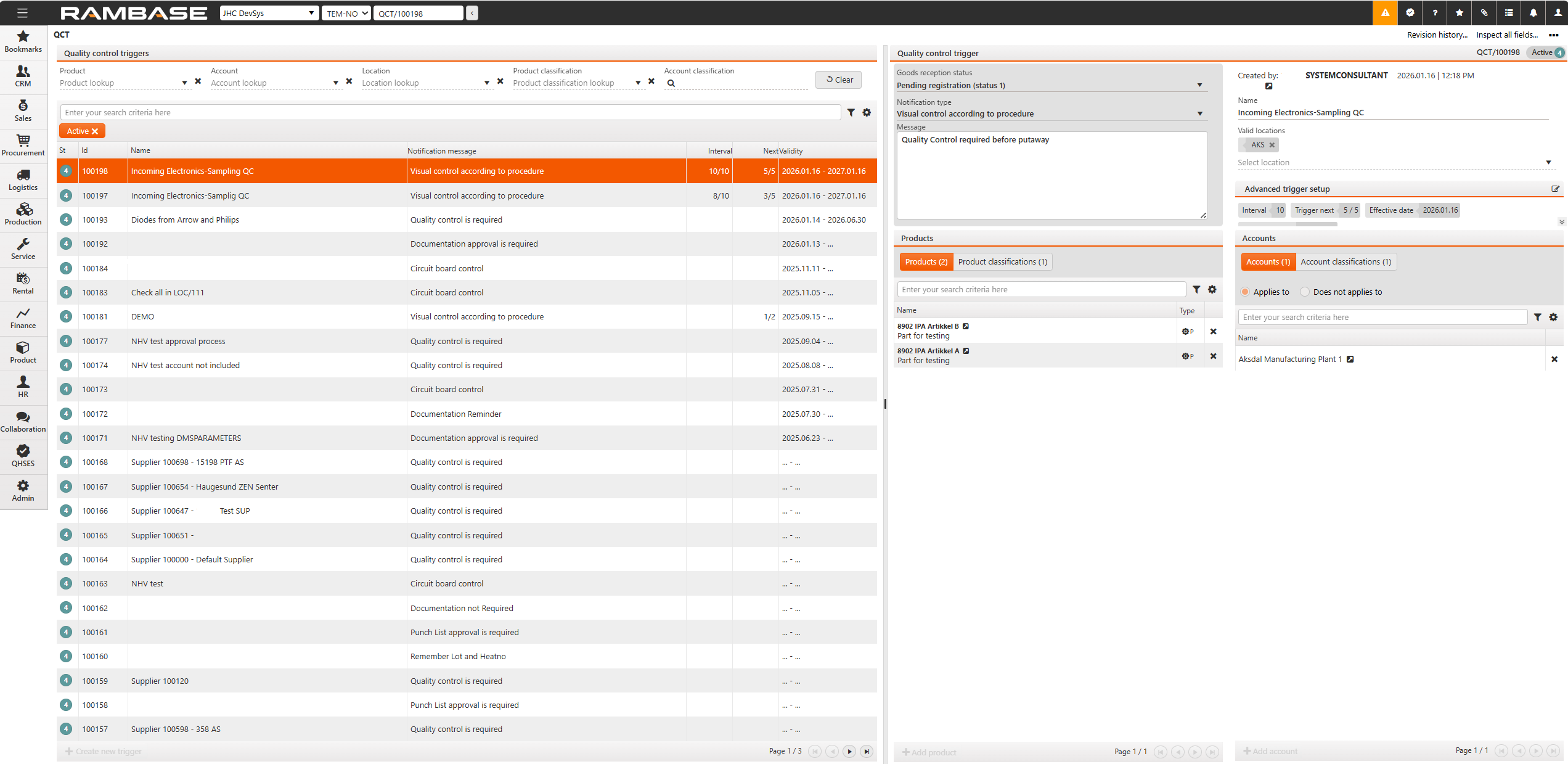
The application is divided into:
The Quality control triggers area
The Quality control trigger details area
Products
Accounts
The Quality control triggers area
The Quality control triggers area is filter based and can list all intended triggers.
The header includes search fields, the Filter builder icon and the Column settings icon.
The list includes all filtered triggers and is divided into columns. The user can create a new trigger by clicking the Create new trigger button in the footer.
Quick search
The user can quickly search for a trigger. Click the Quick search bar to include or exclude the following in the search:
Product
Account
Location
Product classification
Account classification
Filter builder
The Filter builder includes a set of predefined filters, listed below. A selected and active predefined filter will be placed underneath the search field and marked with color orange. A selected and inactive field will still be placed underneath the search field, but marked with color gray. Click the Remove icon to remove the predefined filter.
Active - This filter will list all Quality control triggers in Status 4 - Active.
The user can also create saved filters by combining Field, Operator and Value in the Create custom filter area. Click the Save filter button to add the custom filter to the My saved filters area. A selected custom filter will be displayed underneath the search bar like a predefined filter.
Column settings icon
Click the Column settings icon to open the column settings. Here the user can add and remove columns from the Quality control triggers area, Export to excel, Reset to default view and Include custom fields.
Quality control triggers columns
The triggers area includes all included columns and filtered quality control triggers. The user can create a new quality control triggers by clicking the Create new trigger button.
Columns | Description |
|---|---|
St | Displays the status of the quality control triggers.
|
Id | Quality control trigger identifier. |
Name | Displays the Quality control trigger name. |
Notification message | Displays the notification definition message in user language. |
Interval | Intervals can be used to specify that this quality control should not be triggered for example on every fifth purchase. |
Next | You can choose to apply quality control for example to the next 5 purchases. |
Validity | Effective/Expiration date. |
Quality control trigger details area
The details area is used to handle the specific trigger, most notable building the trigger and applying products, triggers setup and accounts.
Header
Goods reception status - Quality control will be triggered by attempt to register Goods reception (SSA) from this status to the next status.
Notification type - Notification type identifier.
Has documentation requirement - If this is checked, the attached files to Goods reception (SSA) will be validated against documentation requirements for this purchase order. If fulfilled, the quality control notification will be automatically approved and doesn't require any manual action. This option is only available for the notification type Documentation approval is required.
Message - Message with additional information for a quality control. Text to be visible in transaction document item when a notification is added due to this trigger.
Created by - Who the quality control trigger is created by.
Name - Name of quality control trigger.
Valid locations - Quality control can be limited to certain locations. You may select one or more locations, and selecting a product or supplier is optional.
Advanced trigger setup
The advanced trigger setup enables configuration of trigger intervals and the application of quality control for a defined duration or for selected products or suppliers.
Trigger interval - Intervals can be used to specify that this quality control should be triggered for example on every fifth purchase.
Trigger next - If quality issues have been observed recently, for example with specific products or suppliers, you can choose to apply quality control for example to the next 10 purchases.
Remaining - The remaining number of new objects for which the quality control trigger will be triggered. This is a number that will be counted down based on the number that is set up in Next. E.g Next is 20, means that this QCT should be triggered for the next 20 order items. First time it’s triggered, RemainingNext is counted down to 19. Next time to 18 etc. When it’s triggered 20 times, it doesn’t apply any more.
Effective date/Expiration date - The date the quality control trigger is effective from. Expiration date: The date when the quality control trigger expires.
Products
Products - Which product this quality control trigger applies for. Can also be blank to apply for all products.
Product classifications - Which product-classification this quality control trigger applies for. Can also be blank to apply for all products.
Add product
Accounts
Accounts - Which supplier account this quality control trigger applies or not applies to. Can also be blank to apply for all accounts.
Account classifications - Which account classification this quality control trigger applies to. Can also be blank to apply for all account classifications
Add account
Context menu options
The context menu options are available from the header by clicking the Context menu options icon.
Activate quality control trigger
Delete quality control trigger
Close quality control trigger
Revision history...