Roles (ROL) application
The Roles (ROL) application in RamBase manages user access by defining roles that group together specific duties. Each duty represents a work task and contains one or more privileges, which define the permission needed to perform that task. Permissions are managed at the duty level - not directly within roles. Roles can be created from RamBase-provided templates or built from scratch to suit specific needs. When using a template, you can choose to keep the role synchronized - meaning that updates to the template are automatically applied - decouple it independent customization. Assigning roles to users ensures they have access to functionality required for their work.
Templates
Role templates (ROT) are created and maintained by RamBase.
Activate admittance changes
To apply changes made to a Role (ROL), select the Activate admittance changes in the Context menu
Improved Security:
By restricting user access, organizations can enhance their security posture and reduce the risk of unauthorized access.
Operational Efficiency:
Streamlined role management and the ability to share roles among companies within a group can reduce administrative overhead and improve operational efficiency.
Consistency and Standardization:
Deploy-able templates and predefined roles ensure consistency and standardization across the organization, making it easier to manage roles and permissions.
Flexibility and Customization
Navigate to the application
Option 1: RamBase menu→Admin→User administration→Roles
Option 2: Click the Program field and type "ROL" and press ENTER.
Click here to read more about the user interface.
Application layout
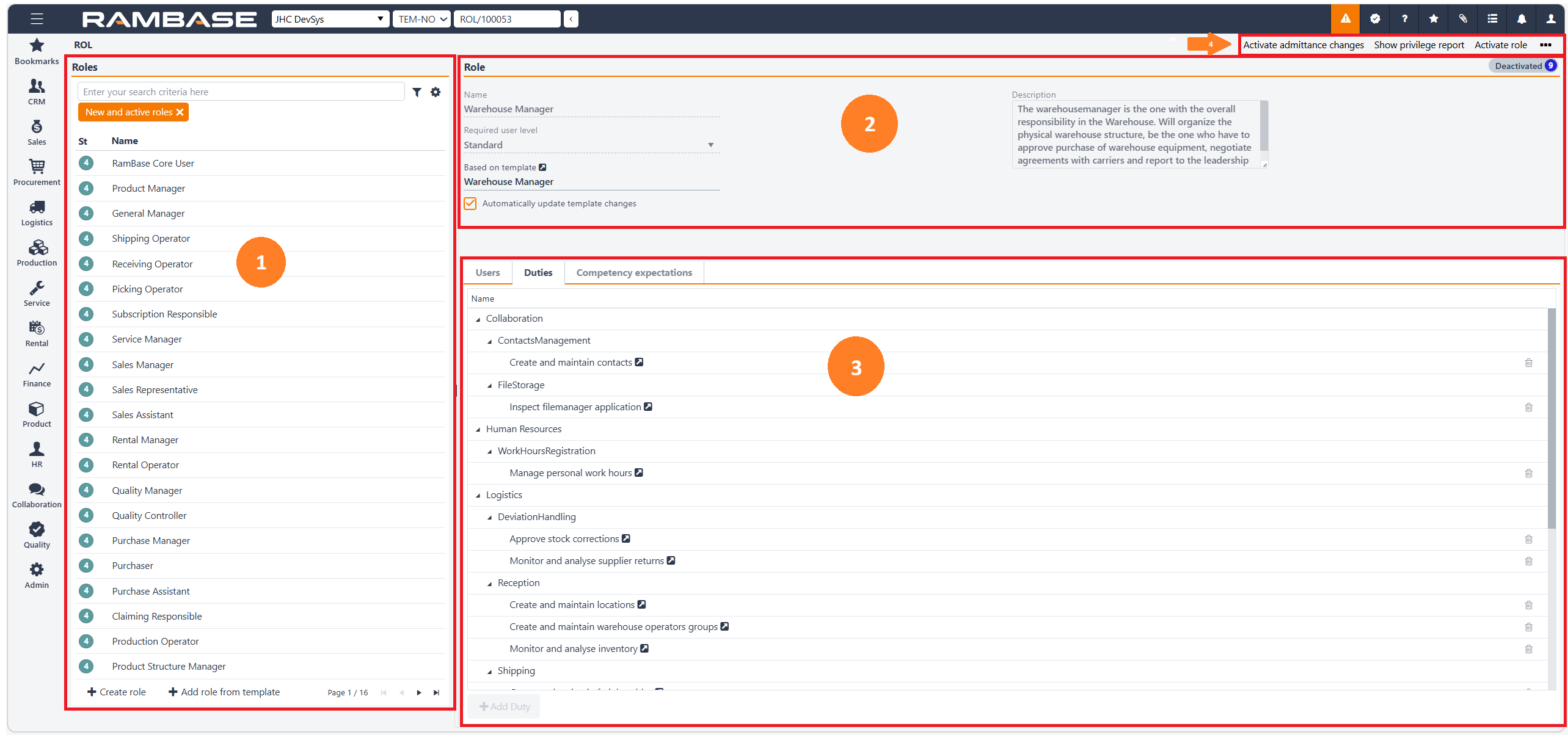
Roles - List
The List area contains all Roles (ROL) in your company. Information on the selected and highlighted role will be displayed in the header Role area.
Column | Icon | Description |
|---|---|---|
St |
| Displays an icon indicating the status of the Role (ROL). Potential statuses are:
|
Role id | Displays the Role identifier (ROL). | |
Name | Displays the name of the Role (ROL), created in the Roles (ROL) application or sourced from a template which was made in the Role template (ROT) application. | |
Description | Displays the potential description of the Role (ROL). |

Add role from template
To add a role from a template, click the Add role from template button. In the popup, select the desired Role template (ROT) and confirm. The role will be created with predefined settings from the template.
Role - Header
Field | Description | ||||
|---|---|---|---|---|---|
Name | Displays the name of the Role (ROL). Either created in the Role (ROL) application, or the name is sourced from the template created in the Role template (ROT) application. | ||||
Required user level | The user level required to have this role. Only user having the same level or higher can be assigned. This field also controls which duties can be added to the role. Only duties with the same level or lower can be added. User levels (highest level first): Administrator, Partner, User, Portal user. | ||||
Based on template | If the Role (ROL) is added from a template, via the Add role from template button, the name of the source template, Role template (ROT), is displayed in this field. | ||||
Automatically update template changes | If this checkbox is enabled, changes made to the template, by RamBase, will be automatically applied to the Role (ROL). Examples of automatically applied changes can be Duties, Required user level etc. | ||||
Description | Roles which are created in the Roles (ROL) application, and not from a template, allows the option of providing a helpful description for the role. Example:
|
Tabs
Users
The Users tab allows you to manage which users are assigned to the role, define validity periods, and add or remove users as needed.
Field | Icon | Description |
|---|---|---|
St | Displays the status icon for the user (e.g., active, inactive). | |
User id |
| Unique identifier for the user in the system. To view details, click the View icon to open the Personnel (PER) application. |
First name | User's given name. | |
Name | User's surname. | |
Valid from | Start date for the user's role assignment. | |
Valid to | End date for the user's role assignment. | |
Comment | Optional notes or remarks about the user's role assignment. | |
| To remove a user from the role, click the Remove icon. |


Add user button
Located in the Users tab toolbar. Clicking this button opens a dialog where you can search for and select users to assign to the selected role. You can also define the validity period for the assignment.
Duties - Tree list
The Duties section provides a structured hierarchy for managing permissions. Duties are organized as:
Module
Submodule
Duty
This structure helps group permissions logically and provides better control of access.
Example:
Module: Quality management
Submodule: Documents
Duties:
Approve documents
Read documents
Create and update documents
Scope (Access level by organizational unit)
Some duties allow defining access scope:
All units - Access across all units
User units - Limited to the user's assigned units
Selected units - Access to specific units
Note
Editing duties might change access points of the users assigned to this role.
Functionality
Icon | Description |
|---|---|
| To expand or collapse a module, to view potential sub-categorization, click the Expand/Collapse icons. |
| To open the Duty (DUTY) application, click the View icon to inspect and edit details. |
| To remove a Duty (DUTY) from a Role (ROL), click the duty to highlight it, and then click the Delete icon. |


Add Duty button
Objective: Add a Duty (DUTY) to a Role (ROL).
Note
The list displaying the potential Duties (DUTY) to be added will exclude Duties (DUTY) currently added to Role (ROL).
To add a duty in the Roles (ROL) application, open the Roles (ROL) application from the RamBase menu and locate the role you want to update.
Go to the Duties tab, click the Add Duty button, in the popup click the Search for the duty by its name.
Select the duty by marking the checkbox and then click the Add button.
Result: The duty will now appear in the role’s duty list, ready for use.
Competency expectations
The Competency expectations tab defines the skills and proficiency levels expected for users assigned to this role.
Column | Description |
|---|---|
Id | Unique identifier for the competency. |
Competence name | Name of the required skill or competency. |
Competence level | Expected proficiency level (e.g., Basic, Intermediate, Expert). |
Context menu options
Context menu option | Description |
|---|---|
Activate admittance changes | Applies pending changes to user access rights. After making changes to Role (ROL), select the Activate admittance changes option to apply the changes. |
Show privilege report | To open the report, Privileges and link to duties and roles (REPORT/102299), select the Show privilege report option. The report is a list of privileges and which roles and duties that grants their permissions. |
Activate role | To activate the Role (ROL), set in Status 4 - Active, select the Activate role option. |
Delete role | Permanently removes the role from the system. |
Copy role | Creates a duplicate of the role for reuse or modification. |
Discontinue role | Marks the role as inactive without deleting it. |
Procedures
Create a Role (ROL) in Status 1 - Pending registration
To create a Role (ROL) in Status 1 - Pending registration, click the Create role button.
In the following popup, provide a suitable Name for the Role (ROL), in example 'Key account manager'.
Then click the Create button.
Result
A new Role (ROL) in Status 1 - Pending registration is created.
Add role from template
To add a role from a template, click the Add role from template button. In the popup, select the desired Role template (ROT) and confirm.
Result
The role will be created with predefined settings from the template.
Specify the base settings for a Role (ROL)
Once a Role (ROL) has been created it will be set in Status 1 - Pending registration. It can then be specified in the Header area.
Change name - Available in Status 1 - Pending registration and Status 4 - Active.
To change the name of a Role (ROL), click the Name field in the Header area.
Decide required user level
Select the minimum user level required to be assigned this role. Only users with the same or higher level can be assigned. This also restricts which duties can be added to the role.
Result
The role is now configured with base settings and ready for activation.
Set a Role (ROL) from Status 1- Pending registration to Status 4 - Active
To activate a role, open the role in Status 1 -Pending registration , click the Activate role option in the context menu. The role status will change to Status 4 - Active.
Add user(s) to role
To assign users to a role, navigate to the Users tab, click Add user button, select the user from the list, and specify the validity period. Confirm to complete the assignment.
Add duty to role
Add Duty button
Objective: Add a Duty (DUTY) to a Role (ROL).
To add a duty in the Roles (ROL) application, open the Roles (ROL) application from the RamBase menu and locate the role you want to update.
Go to the Duties tab, click the Add Duty button, in the popup click the Search for the duty by its name.
Select the duty by marking the checkbox and then click the Add button.
Result: The duty will now appear in the role’s duty list, ready for use.
Tip
If selecting multiple by searching for one, enabling it and then searching for another, the enabled Duty (DUTY) is added and will be listed after clicking the Add button.
The selection in the field, Required user level may restrict the addition of a duty on a role. If so, an error message will display "The user level for this duty is not allowed on this role".
The list displaying the potential Duties (DUTY) to be added will exclude Duties (DUTY) currently added to Role (ROL).