The Rental item check-out (RIO) application
Navigate to the application
Option 1: RamBase menu → Rental → Rental contract → Rental item check-out
Option 2: Click the Program field and type "RIO" and press ENTER.
Click here to read more about the user interface.
Overview
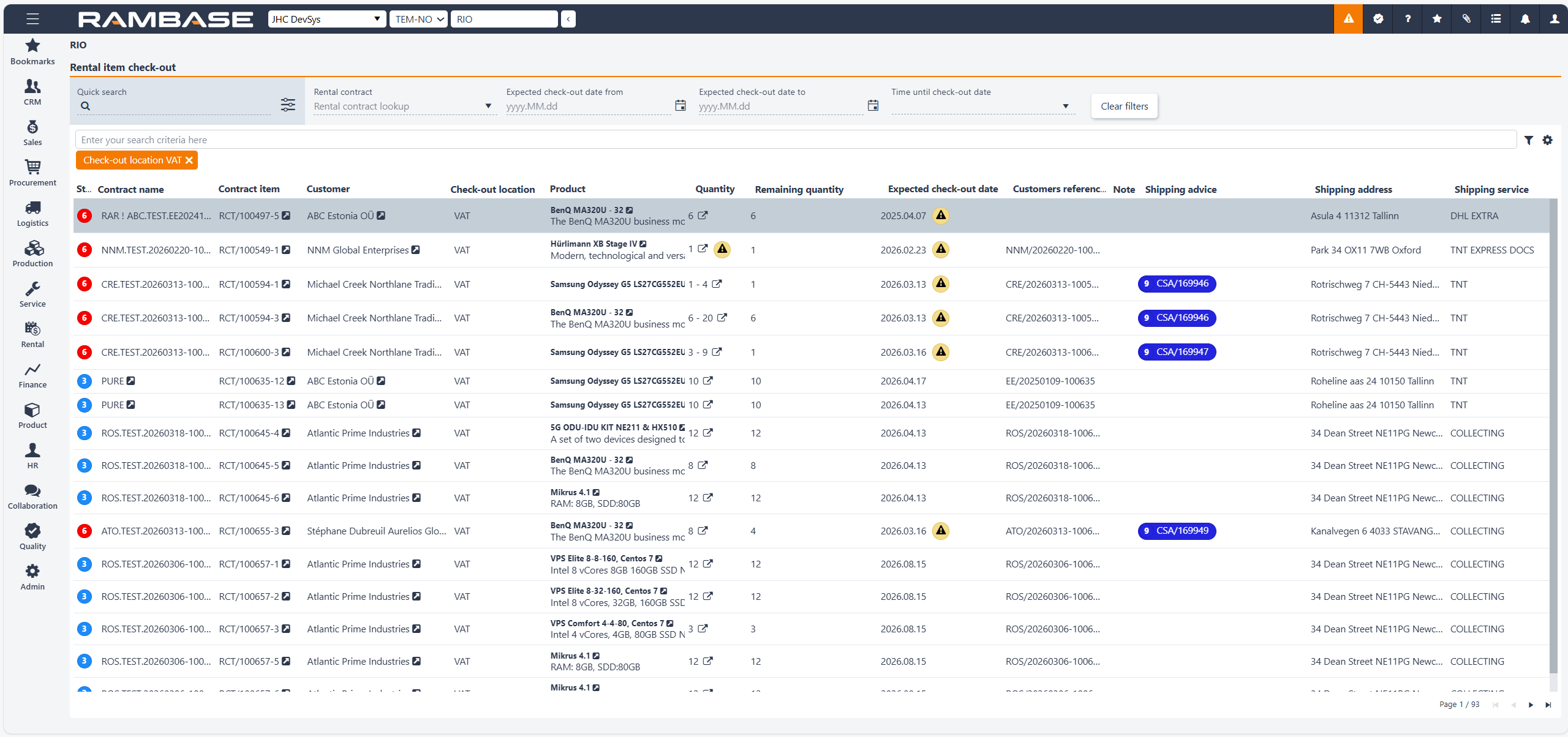
The Rental item check-out (RIO) application provides an overview of rental and subscription data, allowing users to track both physical rental items and non-physical subscription items in one place. It displays key information related to contracts, quantities, and rental periods, helping monitor ongoing and overdue rentals.
Header
List
Header
The Header area contains the application's options for quick search, the option to filter on a specific rental contract, expected check-out date from, expected check-out date to and time until check-out date.
Quick search field and icon - The Quick search field allows for the inclusion or exclusion parameters. Click the Quick search icon to enable or disable the optional parameters.

Quick search icon
Optional search parametersProduct name
Product description
Customer
Customers reference no
Rental contract - In the popup list, click on a specific Rental contract (RCT) to get an overview.
Expected check-out date from field and icon - To filter on a Rental overview (RCT) with expected check out date from, type or select a date by clicking the Calendar icon.

Calendar icon
Expected check-out date to field and icon - To filter on a Rental overview (RCT) with expected check out date from, type or select a date by clicking the Calendar icon.
Time until check-out date - This option provides a quick way to define the checkout date range. Based on your selection, for example 7 days, 14 days or 21 days, the system automatically sets the start date to today and the end date according to the chosen time period.
Grid/List
The list includes standard RamBase search and filtering options which you can read more about in the tip box below.
Search field, filter builder and column settings
The header contains multiple options to filter the list:
Open items and order item - To filter the list on Rental overviews (RCT)
Column | Icon | Description |
|---|---|---|
Status | Displays the current stage of the Rental overview (RCT). Potential statuses are:
| |
Contract name | Short description for the rental contract. | |
Contract item |
| Displays the Rental contract item identifier (RCTITEM).
|
Customer |
| Displays the name of the Customer (CUS). To view and/or edit details, click the View icon to open the Customer (CUS) application. |
Check-out location | Displays the potential three letter abbreviation of the Location (LOC) where the Rental unit (RUT) is expected to be checked in. | |
Product |
| Displays the name and description of the Product (ART) which applies to the Rental unit (RUT). To open the Product (ART) application, click the View icon. |
Product collection | The product collection that the product belongs to. | |
Quantity | Number of units ordered. | |
Remaining quantity | Quantity of Rental units (RUT) that haven't been shipped yet. | |
Expected check-out date |
| Displays the date which the asset is expected to be shipped. If the expected check-out date for the rental unit is significantly delayed/overdue a warning icon will be present in the column. |
Customer reference no. | Displays the customers reference number. E.g. the sales order identifier the customer might use in their internal system. | |
Note | Internal note for the contract item. | |
Shipping advice id. |
| Displays the shipping advice item that this unit was shipped out on. To view and edit details, click the View icon to open the Shipping advice item (CSAITEM) application. |
Shipping address | Address reference. | |
Shipping service | Name of shipping service. |