[en] Product revision
[en] Overview
[en] Accessing the Product revision (PRE) application is done from the Product (ART) application.
Podpowiedź
[en] Navigate to the application
[en] Option 1
[en] From the Product (ART) application, create a new product.
[en] Activate the article from the context menu area. The article will now be in Status 4 - Active.
[en] Click the Revision field in the Product (ART) application.
[en] Option 2: Click the Program field and type "PRE/ + Identifier" and press ENTER.
[en] Example: "PRE/123456"
[en] Click here to read more about the user interface.
[en] The Product revision (PRE) application is used to conduct revisions of product types without structures. This refers to all product types that are not K - Kit.
[en] The application is divided into two areas, the product revision space on the left side and the revision details on the right side.
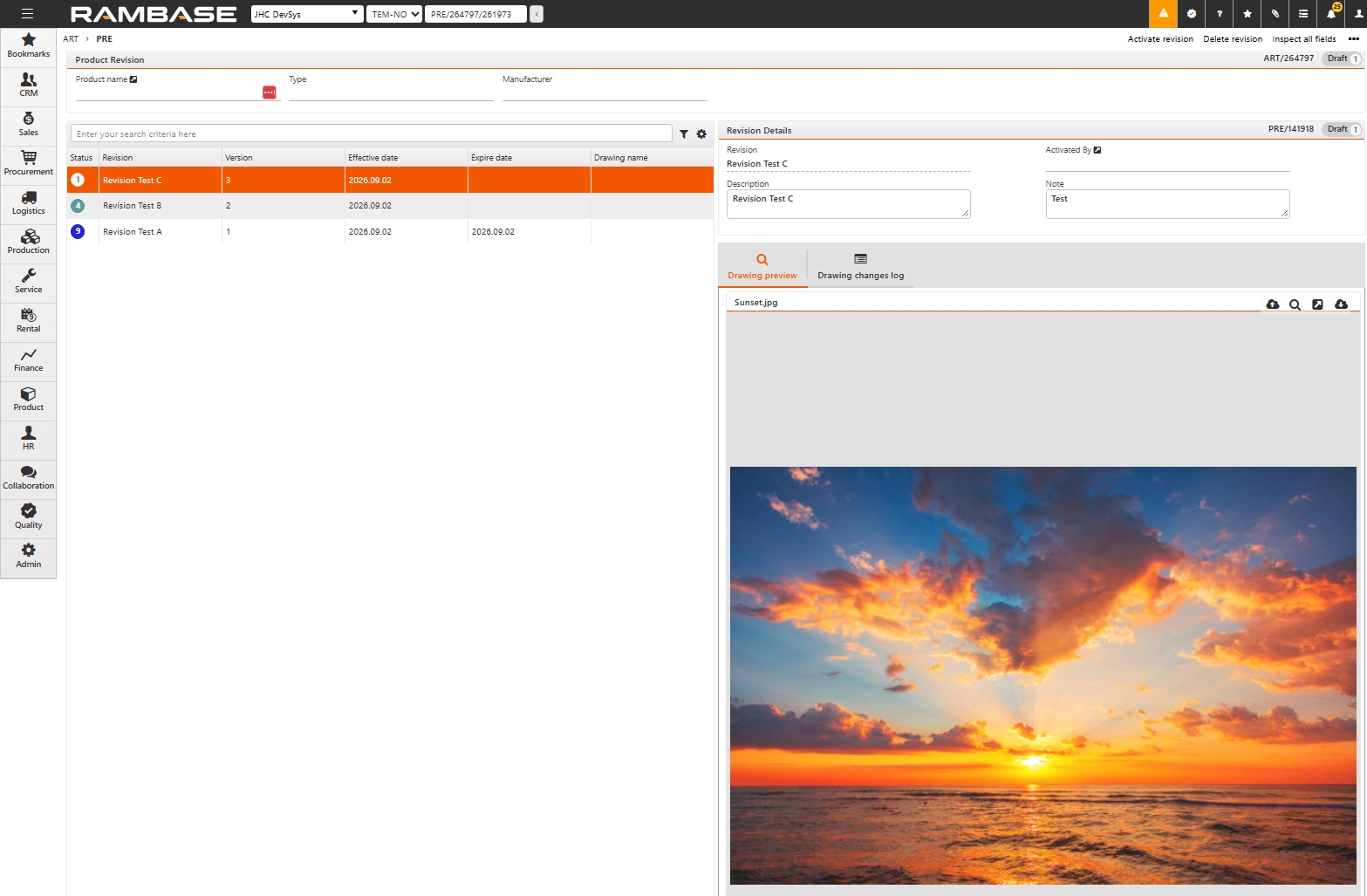
[en] Header of the product revision space:
[en] The header of the Product revision space displays information from the Product (ART) application. This includes information about the Product name, Type, and Manufacturer.
[en] Click the View icon next to the Product name to open the Product (ART) application.
[en] Product Revision area
[en] The table below describes the columns in the Product Revision area.
[en] Columns | [en] Description |
|---|---|
[en] Status | [en] Displays the status of the Product revision. |
[en] Revision | [en] Displays the title of the Product revision. |
[en] Version | [en] Displays the version of the Product revision. |
[en] Effective date | [en] Displays the date the revision was created. |
[en] Expire date | [en] Displays the date the revision expired. [en] The expiration date is effective once a new version of the product revision has been activated. |
[en] Drawing name | [en] Displays the name of the attached image. |
[en] Revision Details area
[en] The table below describes the fields in the Revision Details area.
[en] Fields | [en] Description |
|---|---|
[en] Revision | [en] The name of the Revision can be edited. [en] Cannot be edited in Status 4 or 9. |
[en] Description | [en] Additional information can be written about the Product revision. [en] Cannot be edited in Status 9. |
[en] Activated By | [en] Displays the user who activated the revision. |
[en] Note | [en] Additional information can be written about the Product revision. [en] Cannot be edited in Status 9. |
[en] Drawing area
[en] The table below describes the tabs in the Drawing area.
[en] Tabs | [en] Description |
|---|---|
[en] Drawing preview | [en] Displays a preview of the uploaded image. [en] Options available from the Drawing preview:
|
[en] Drawing changes log | [en] Displays a historical overview of changes made to the associated image. |
[en] Context menu options
[en] The context menu options are found in the top right corner by clicking the Context menu icon. The available options are listed below.
[en] Option | [en] Description |
|---|---|
[en] Activate revision | [en] Click to activate the revision. [en] When a revision is activated, the status is changed from Status 1 to Status 4. |
[en] Delete revision | [en] Click to delete the revision. [en] Only revisions in Status 1 (edit mode) can be deleted. Deleting a revision removes it from the Product revision area. |