[en] Add Measuring tool (MET) to Measurements (MSR) of class Dimension
[en] Measuring tools (MET) can be added to Measurements (MSR) of class DIMENSION. This can either be done in the First article inspections (MEASURELCM)/ Key characteristics inspections (MEASURELCM) application, or the from the Work order operations (WOO) application.
[en] Navigate to the application
[en] Option 1: RamBase menu → Production → Documentation → Measurements
[en] Option 2: Click the Program field and type "MSR" and press ENTER.
[en] Click here to read more about the user interface.
[en] About Class = DIMENSION
[en] Measurements (MSR), of class DIMENSION, are used for mechanical measures, lengths, diameters etc.
[en] Type = FAI - First article inspection
[en] Type = KCI - Key characteristics inspection
[en] From the RamBase menu
[en] To open the Measurements menu (MSR) application from the RamBase menu, click Production, then Documentation and finally Measurements.
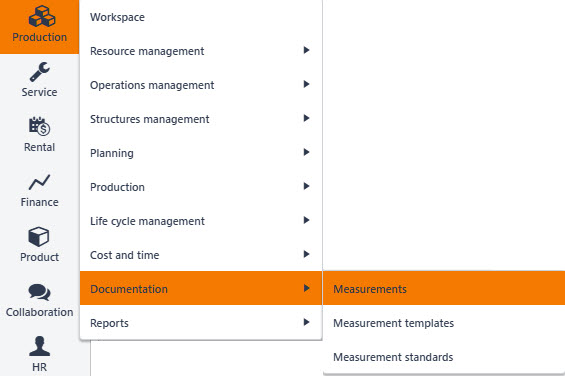
[en] In the Measurements menu (MSR) application, find the Measurement (MSR) of DocType FAI or KCI, where tool is to be added.
[en] To open the First article inspection/Key characteristics inspection (MEASURELCM) application, click the link in the Docid column or double-click. Alternatively, click the line to highlight it and then press ENTER.
[en] In the First article inspection/Key characteristics inspection (MEASURELCM) application, find the Tools area.
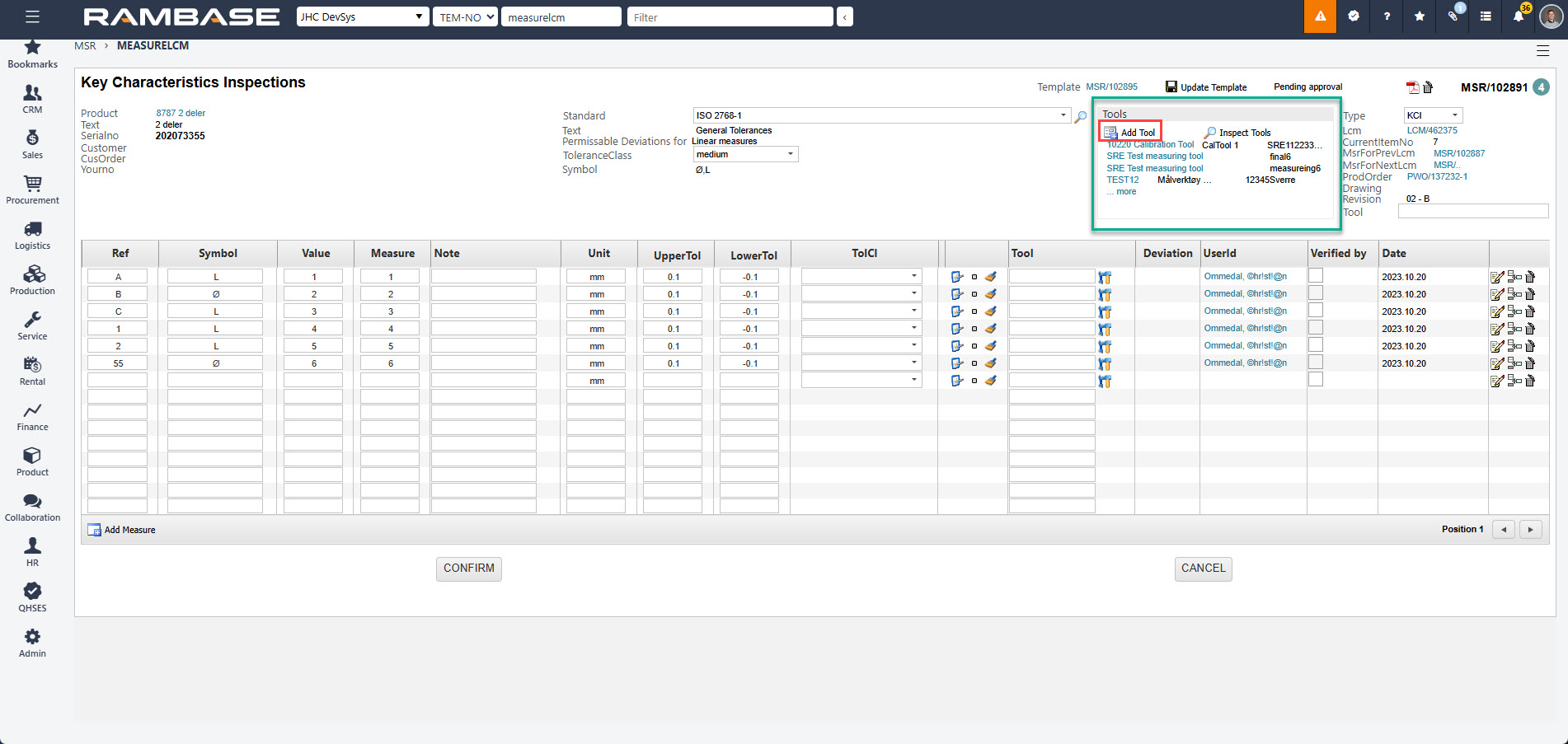
[en] To open the popup where a Measuring tool (MET) can be added to the Measure (MSR), click the Add tool icon.

[en] Add tool icon
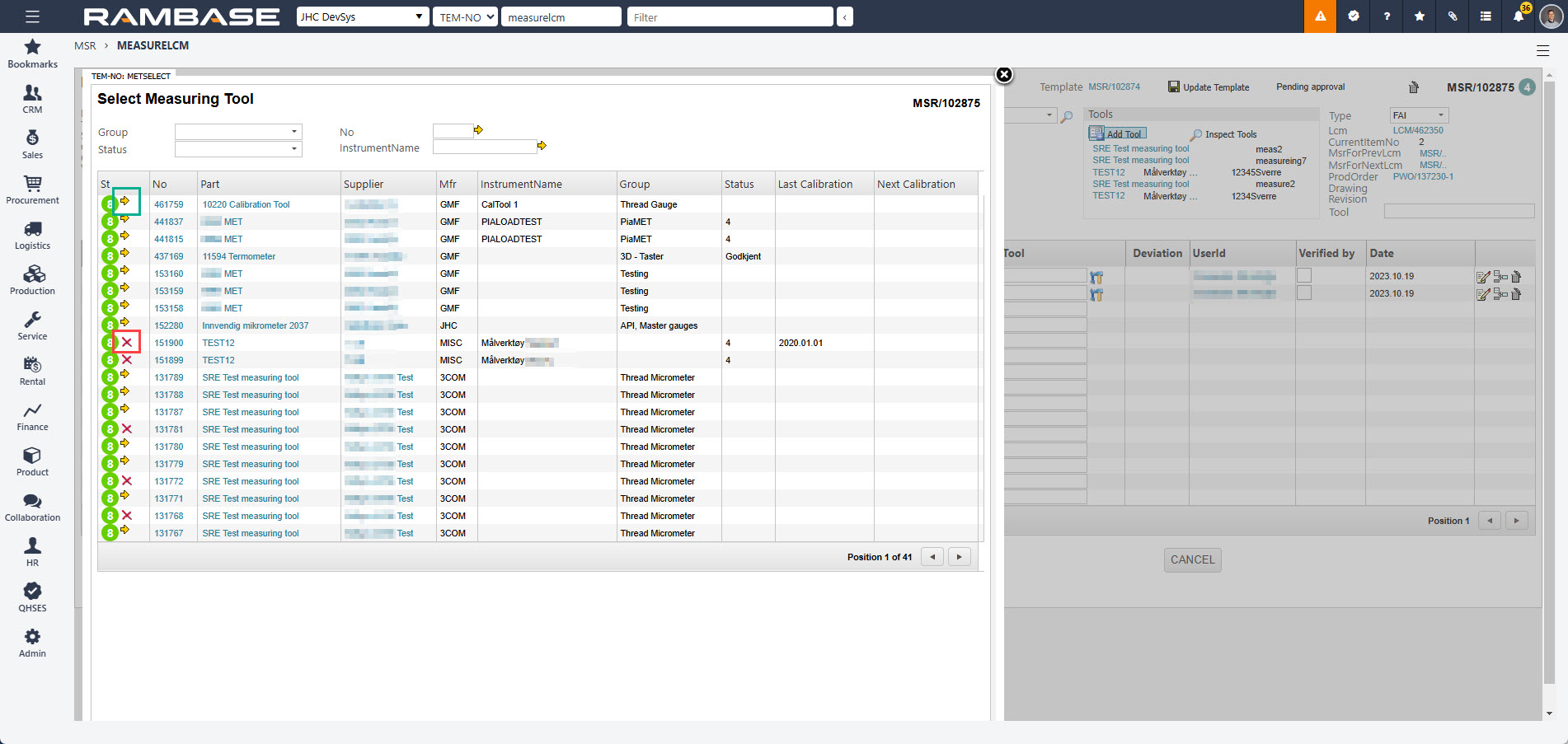
[en] To add a single Measuring tool (MET), click a line to highlight it and then press ENTER.
[en] To add multiple Measuring tools (MET), click the Arrow icon, as shown in the green box in the image above.
[en] To remove a Measuring tool (MET), click the Remove icon, as shown in the red box in the image above.
Podpowiedź
[en] Hover over the Arrow icon to list which Measure(s) (MSR) the Measuring tool (MET) will be added.
[en] Hover over the Remove icon to list which Measure(s) (MSR) the Measuring tool (MET) will be removed.
[en] From Work order operations (WOO) application - For the operator
[en] If the Product unit (LCM) has a measurement requirement, the operator can, from the Work order operations (WOO) application, easily add a tool by using a quick link or the Context menu to navigate to the First article inspection/Key characteristics inspection (MEASURELCM) application.
[en] In the Work order operations (WOO) application, find the Work progress area, and then click the Product units tab.
[en] In the Measures column, click the DIMENSION icon to open the First article inspection/Key characteristics inspection (MEASURELCM) application.
[en] Continue from step 3, in the Add a Measuring tool (MET) procedure, above.
[en] In the Work order operations (WOO) application, click the Context menu option.

[en] Context menu icon
[en] To open the Measure select (METSELECT) popup, select the Add measuring tool to dimensions MSR's option.
[en] In the Add measuring tool to dimensions MSR's popup, select which of the listed Measuring tools (MET) are added to the Measures (MSR).
[en] Measuring tool (MET) will be added to all potential Measures (MSR)
[en] When adding a Measuring tool (MET) from the Work order operations (WOO) application, the Measuring tool (MET) will be added to all potential Measures (MSR).
[en] From Production work order (PWOD) application - For the production planner
[en] If the Product unit (LCM) has a measure requirement, the operator can, from the Production work order (PWOD) application, easily add a tool by using a quick link or the Context menu to navigate to the First article inspection/Key characteristics inspection (MEASURELCM) application.
[en] In the Production work order (PWOD), find the Product units and current work order operation area.
[en] In the Measures column, click the DIMENSION icon to open the First article inspection/Key characteristics inspection (MEASURELCM) application.
[en] Continue from step 3, in the Add a Measuring tool (MET) procedure, above.
[en] In the Production work order (PWOD) application, click the Context menu option.
[en] Context menu icon
[en] In the Context menu, select the Measures option. This will open the Measures (MSR) application, where the relevant Measures (MSR) will be listed.
[en] To open the First article inspection/Key characteristics inspection (MEASURELCM) application, click to highlight a Measure (MSR) and press ENTER.
[en] Continue from step 3, in the Add a Measuring tool (MET) procedure, above.