[en] Alternative Materials
[en] In order to use alternative materials, the user needs to first define the materials. This is done from the Production structure (KITDOC) application. Defining an alternative material means that when a base material is out of stock or generally unavailable, it can be replaced by a different material of the same type.
[en] Accessing the Production Structure (KITDOC) application is done from the Production work order (PWO) application.
Podpowiedź
[en] Define alternative materials
[en] To open the Production work order (PWO) application, find Production in the RamBase menu then Production.
[en] Click Production work orders to open the Production work orders (PWOMENU) application.
[en] From the listed Production work orders (PWOMENU), click the intended Production work order (PWO) and press ENTER.
[en] This opens the Production work order (PWO) application for the selected Production work order (PWO). Click on the Structure button under the Links area to open the Production structure (KITDOC) application.
[en] Double click any column in the material row to open the PWO Structure Part Item popup. Click the Alternative materials tab to add new alternative materials to the production structure.
[en] Click the Add new material button to open the Part Select popup. In this new window, select the part(s) to be used in place of the base material.
[en] Double click the part to add it to the Alternative materials list in the PWO Structure Part Item popup. To delete a part, click the Delete alternative material icon in the Delete column.
[en] Click the Confirm button to confirm the changes.
[en] Allocate alternative materials to stock with the Production work order assignments (PWOSARLINKS) application
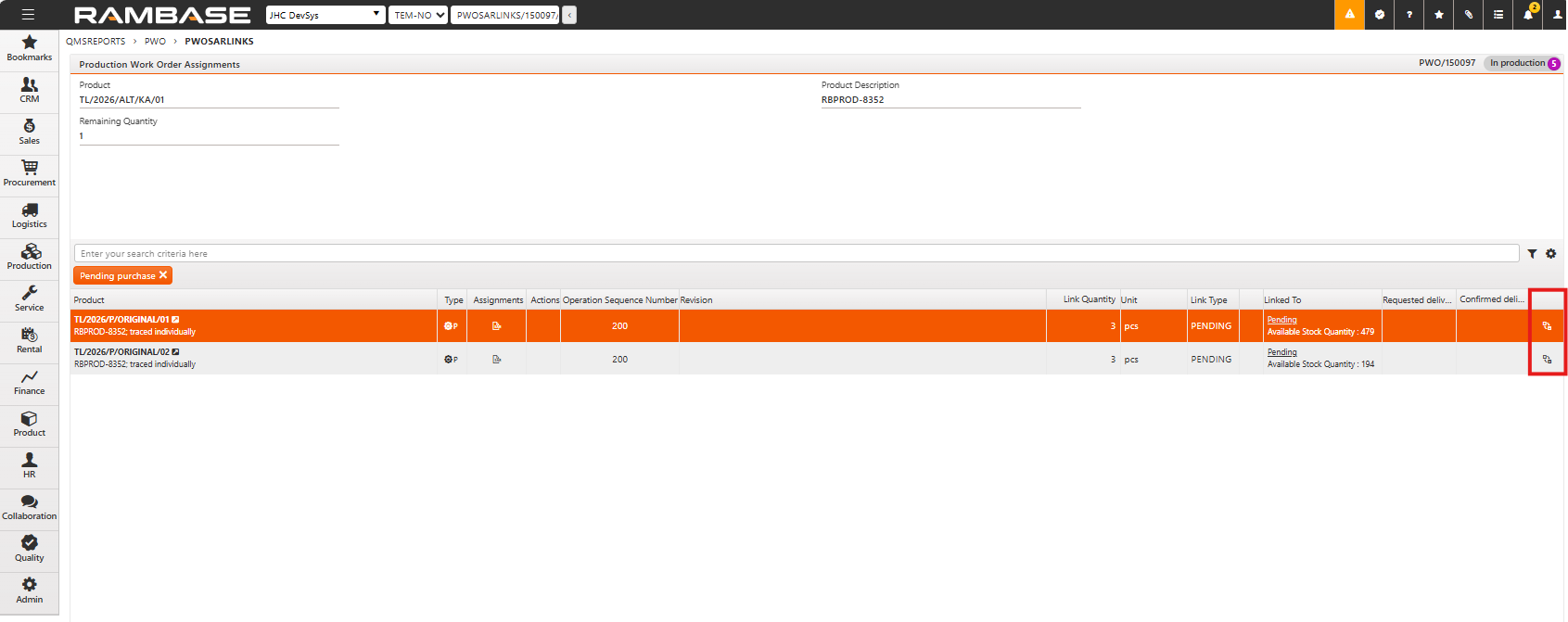
[en] From the Production work order (PWO) application, select the desiredsection of the pie chart in the Material deliveries pie chart to open the Production work order assignments (PWOSARLINKS) application.
[en] Click the Use alternative materials icon to open the Alternative materials popup.
[en] Here you will see the alternative materials that were defined in the Production Structure (KITDOC) application. Select the alternative material you want to use and edit the assignment quantity by clicking the Edit icon in the Actions column.
[en] From the Actions column you can either:
[en] a. click the Assign all icon to replace the entire assignment quantity of the base material with the selected alternative material or
[en] b. click the Edit icon to manually adjust the assignment quantity, in case you only want to replace some of the base material with the selected alternative material.
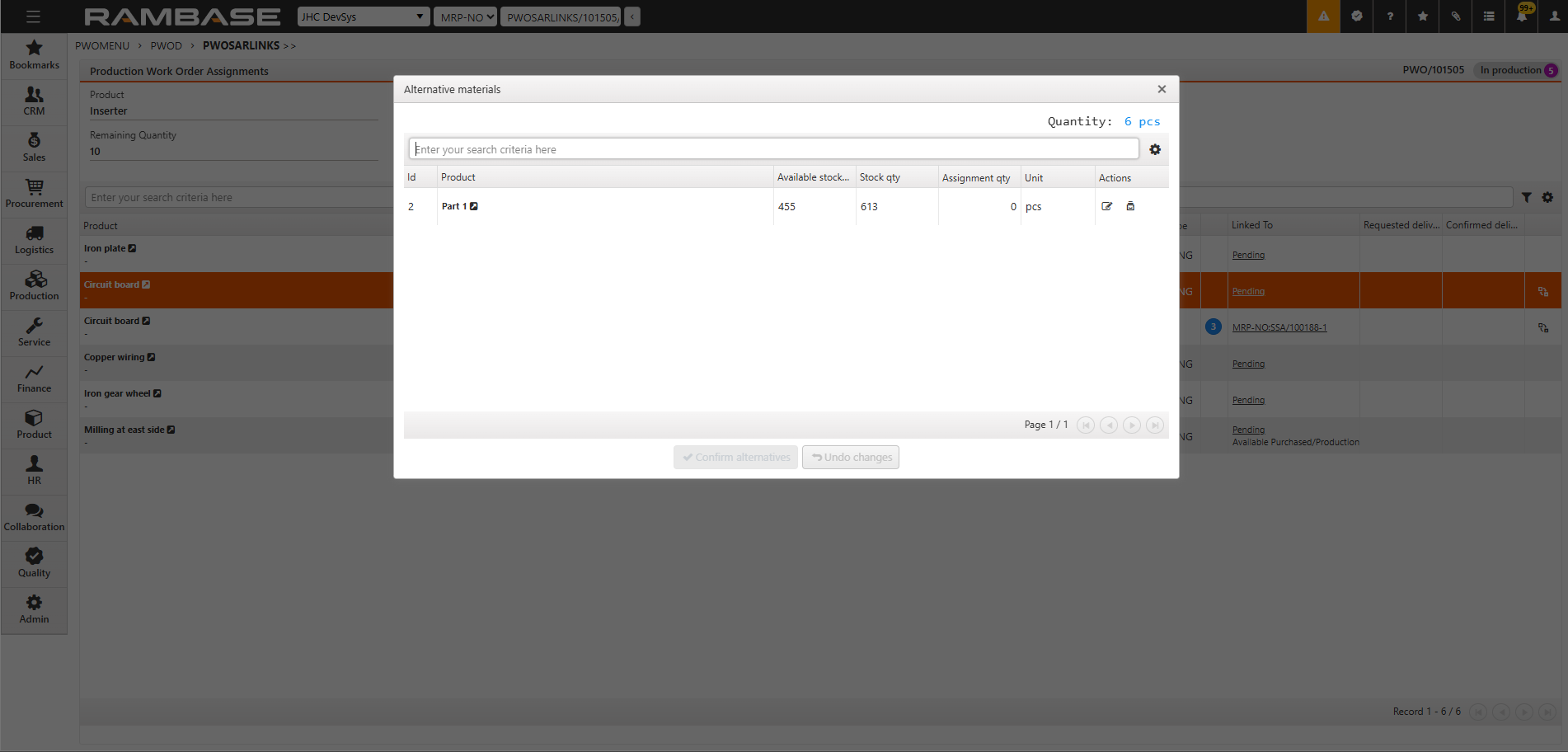
[en] Click the Remove assignment icon to undo the changes. Alternatively, click the Undo changes button at the bottom of the popup.
[en] Click the Confirm alternatives button to add the selected alternative materials.
[en] Click OK to confirm the changes.
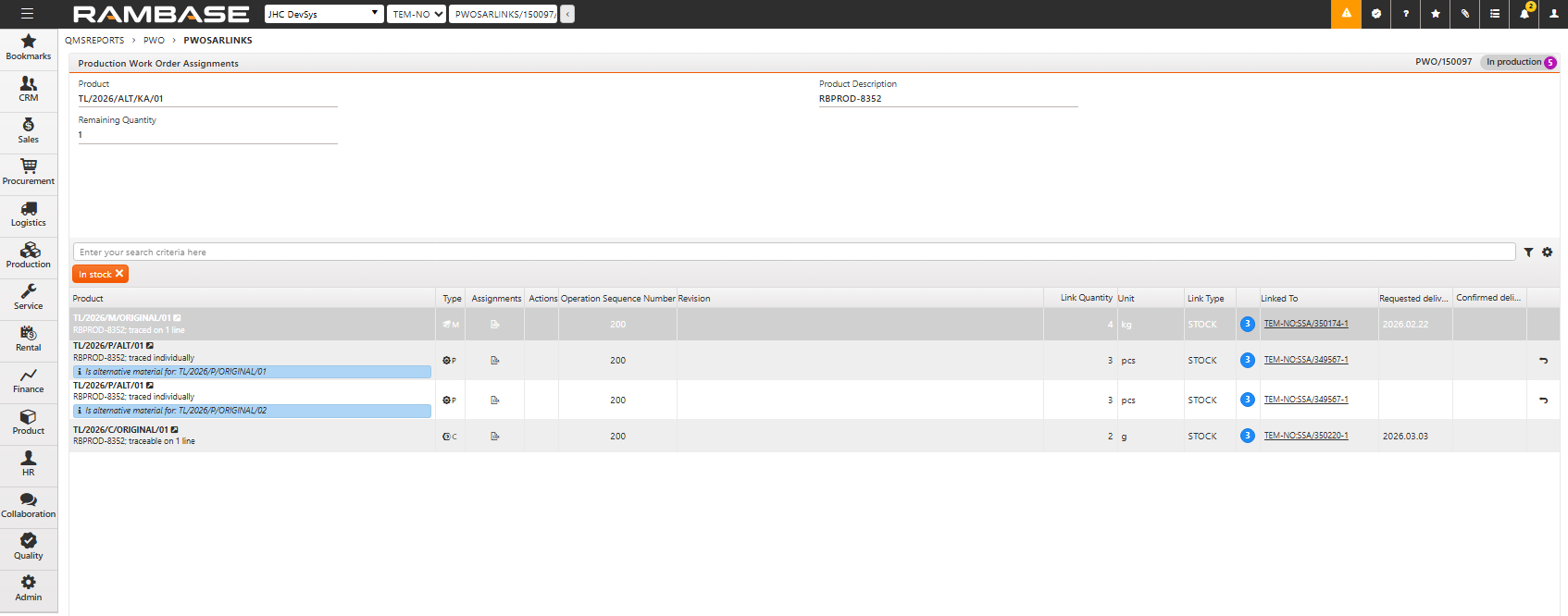
[en] The selected part is added with a label displaying the base material that it is replacing in the product.
[en] Allocate and pick alternative materials to stock via the Product unit picking popup
[en] From the Work order operations (WOO) application, click the Product unit picking icon under the Pick column.
[en] In the List of materials, base materials with alternative materials attached to them are marked by the Has alternative materials icon. The attached alternative material(s) are listed directly below the base material.
[en] Select the alternative materials to be picked for the production work order by opening the Goods reception drop down menu, finding, and selecting the alternative material's goods reception item.
[en] Open the Material serial number drop down menu to add the serial number of the alternative material.
[en] Create and modify alternative materials with the Life Cycle Management (LCM) application
[en] From the Production work order details (PWOD) or the Work order operations (WOO) applications, navigate to Product units and click the Product unit icon to open the Life Cycle Management (LCM) application.
[en] Click the Add Part from Structure button.
[en] In the Select Part and Lot popup window double click the part you want to add. Alternative materials are identified by the Alternative material icon next to the part name.
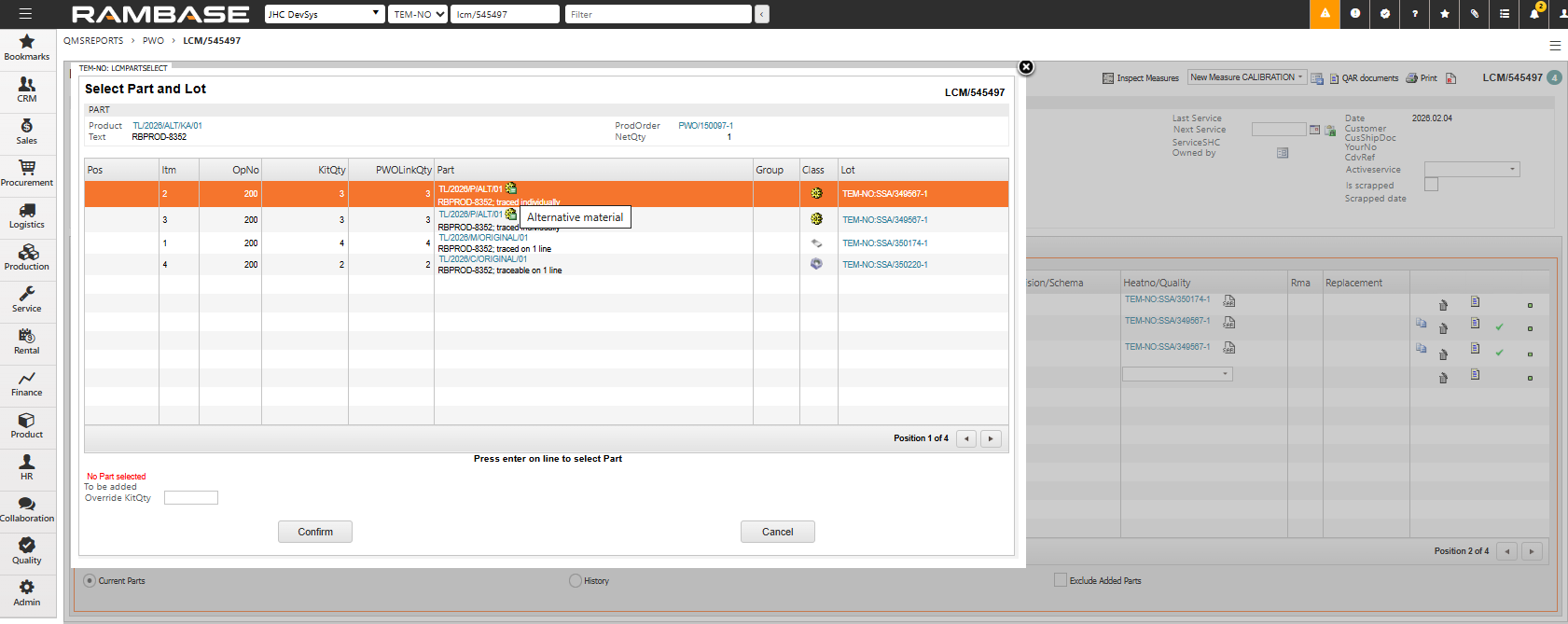
[en] Adjust the quantity in the Override KitQty box in the bottom left corner, if necessary.
[en] Click the Confirm button to add the part to the Life Cycle Management (LCM) Part list.
[en] From the Part List tab in the Life Cycle Management (LCM) application, click the drop down in the Alt column to select either an alternative material or the base material.
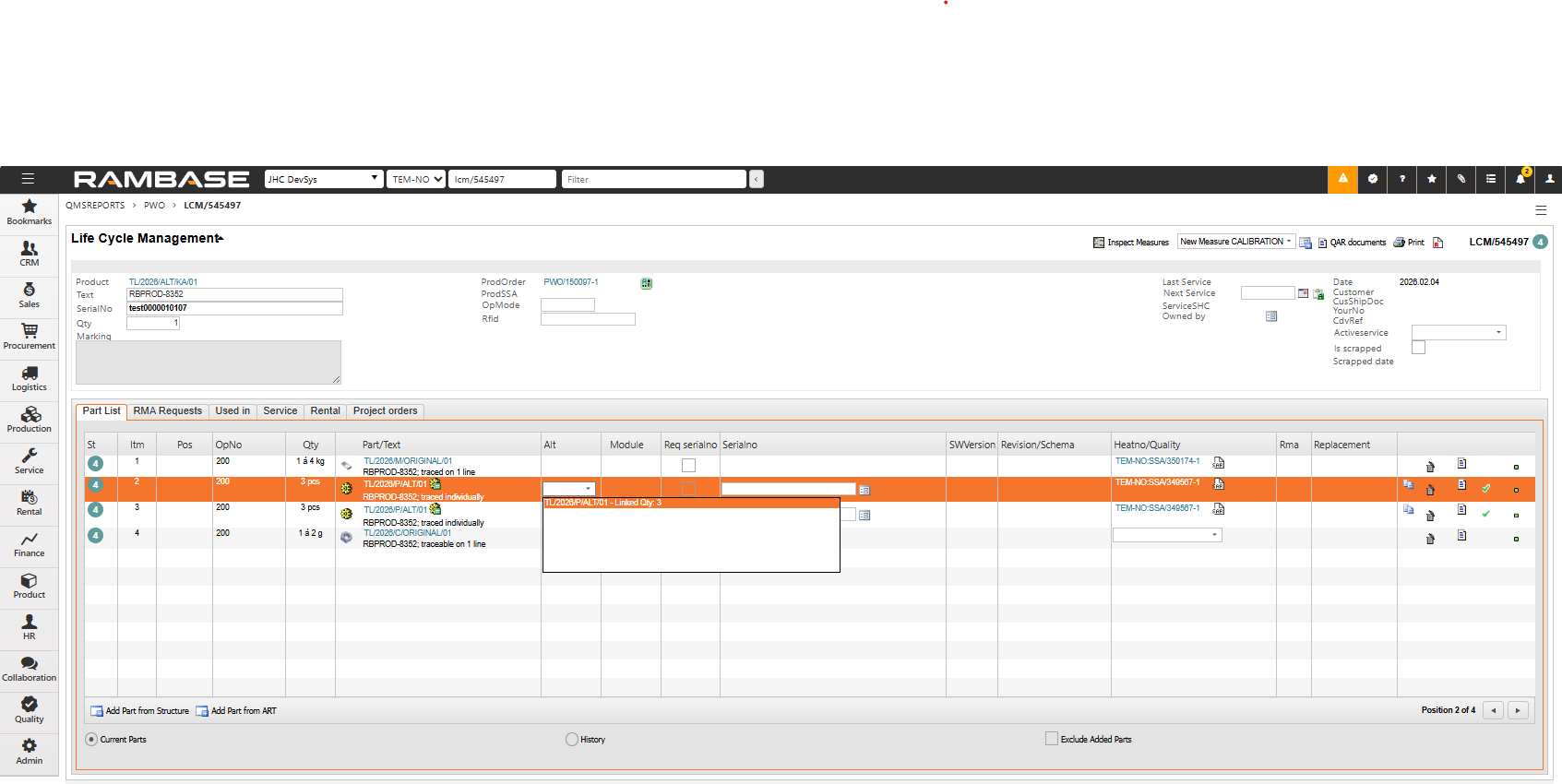
[en] In the Serialno column, use the drop down menu to select the alternative material's serial number.